
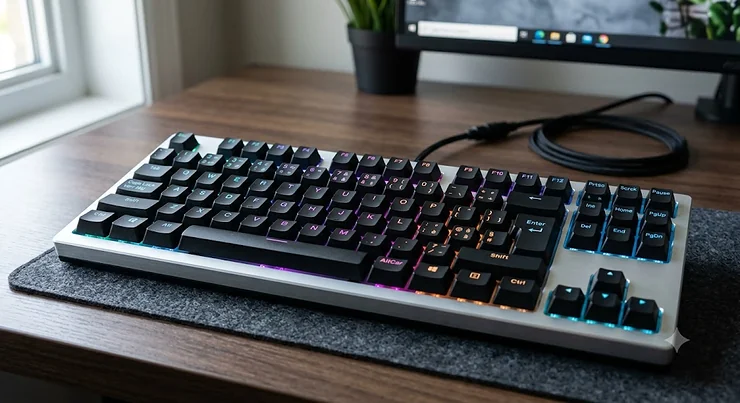
In This Article
Here’s a slightly uncomfortable truth. Most Canadian gamers will happily spend C$600 on a graphics card, agonize for a week over a headset, and then play ranked matches on the rubbery membrane board that came free with their prebuilt PC. That’s like putting winter tires on a car with no brakes.
A gaming keyboard mechanical upgrade is often the cheapest, most noticeable change you can make to how a game feels. Every strafe, every crouch-spam, every panicked ability combo travels through those switches first.
So, what is a gaming keyboard mechanical? It’s a keyboard where every key has its own individual switch — a housing, a spring and a stem (or, in newer designs, a magnet and sensor) — instead of a single rubber membrane sheet. That design delivers consistent actuation, faster and more predictable input, longer lifespan and far better multi-key accuracy during intense play.
The underlying tech isn’t new — you can trace the history of switch designs, from contact switches to Hall effect keyboard technology, back decades. What is new in 2026 is how much performance has trickled down. Adjustable actuation, Rapid Trigger, 8,000 Hz polling and hot-swappable switches used to be enthusiast-only. Now they show up on boards you can pick up on amazon.ca without taking out a second mortgage.
In this guide, I’ve compared seven real, currently available boards across budget, mid-range and premium tiers. The analysis is built from published specs and aggregated reviewer and customer sentiment — not invented “hands-on” stories. You’ll also find practical setup advice, problem-fixing tips, and how your keyboard fits into a broader competitive gaming setup with your mouse, monitor and chair.
Let’s find the board that actually matches how you play.
Quick Comparison Table: 7 Best Gaming Keyboard Mechanical Picks at a Glance
| Keyboard | Layout | Switch Type | Connection | Price Range (CAD) | Best For |
|---|---|---|---|---|---|
| Redragon K552 Kumara | TKL (87-key) | Outemu mechanical | Wired | ~C$40-C$70 | Redragon K552 Kumara: first mechanical board on a tight budget |
| HyperX Alloy Origins Core | TKL | HyperX Red/Aqua/Blue | Wired (USB-C) | ~C$90-C$140 | HyperX Alloy Origins Core: metal build without premium pricing |
| Corsair K70 Core RGB | Full-size | Corsair MLX Red (linear) | Wired | ~C$110-C$150 | Corsair K70 Core RGB: quiet, smooth full-size all-rounder |
| ASUS ROG Strix Scope II 96 Wireless | 96% | ROG NX Snow (hot-swap) | 2.4 GHz / Bluetooth / USB | ~C$170-C$230 | ASUS ROG Strix Scope II 96 Wireless: long battery, numpad kept |
| Logitech G Pro X TKL Lightspeed | TKL | GX Red/Brown/Blue | Lightspeed / Bluetooth / USB | ~C$250-C$300 | Logitech G Pro X TKL Lightspeed: wireless tournament play |
| Razer BlackWidow V4 Pro | Full-size | Razer Green/Yellow | Wired | ~C$250-C$330 | Razer BlackWidow V4 Pro: MMO/macro-heavy players |
| SteelSeries Apex Pro TKL Gen 3 | TKL | OmniPoint 3.0 magnetic | Wired (USB-C) | ~C$250-C$330 | SteelSeries Apex Pro TKL Gen 3: competitive FPS precision |
Prices are approximate ranges at the time of research — check current price on amazon.ca, as prices may vary.
Reading this table top to bottom, you’re essentially watching the price climb in exchange for three things: better switches, wireless freedom, and competitive features like adjustable actuation. The Redragon K552 Kumara and HyperX Alloy Origins Core cover the “just get me off membrane” crowd, while the SteelSeries Apex Pro TKL Gen 3 is the only pick here that fundamentally changes how a keypress is detected. The middle of the table — especially the Corsair K70 Core RGB — is where most buyers get the best value per dollar.
💬 Just one click — help others make better buying decisions too!😊
Top 7 Gaming Keyboard Mechanical Picks: Expert Analysis
1. Redragon K552 Kumara — best budget entry into mechanical
The Redragon K552 Kumara exists to answer one question: how cheaply can you get a real mechanical switch under every key? The answer, at the time of research, is well under C$100.
It’s an 87-key tenkeyless board using Outemu switches (Blue clicky is the classic version, with other variants available) in a metal-and-ABS chassis. In practice, TKL means roughly 8-10 cm more desk space for your mouse compared with a full-size board — a real advantage for low-sensitivity shooter players who sweep across the pad.
Based on the spec comparison, this is the keyboard for students, younger players or anyone testing whether mechanical is “for them.” You’re not getting hot-swap sockets, fancy software or premium keycaps. You are getting genuine per-key switches and solid anti-ghosting for common gaming combos. Reviewers consistently describe it as surprisingly sturdy and heavy for the money, while the most common complaint in user reviews is noise — the Blue-switch version is loud enough to annoy roommates, siblings and anyone on your voice channel.
Pros:
- ✅ Among the cheapest real mechanical boards available
- ✅ Compact TKL frees up valuable mouse space
- ✅ Sturdy, weighty build that doesn’t slide around
Cons:
- ❌ Blue switches are very loud for shared spaces
- ❌ Fixed cable and basic keycaps show the budget
Usually found in the C$40-C$70 range, the Redragon K552 Kumara is the smartest low-risk way to find out whether mechanical switches change your game.
2. HyperX Alloy Origins Core — aluminum build at a mid-range price
The HyperX Alloy Origins Core punches above its price class mainly because of what it’s made of: an aircraft-grade aluminum body that feels far more expensive than it is.
You can choose HyperX Red (linear), Aqua (tactile) or Blue (clicky) switches, and the board uses a detachable USB-C cable — a small detail that matters hugely if you ever travel to LAN events or need to replace a frayed cable. It also offers full N-key rollover and per-key RGB. What most buyers overlook about this model is the lack of dedicated media keys; volume and playback live on function layers, which is fine once memorized but clumsy at first.
Here’s what to weigh: the HyperX Alloy Origins Core is ideal for players who want a durable, no-nonsense TKL for FPS or battle royale games and don’t care about wireless. Reviewers frequently praise the rigid, flex-free frame and the smooth HyperX Red switches, while common criticisms focus on the ABS keycaps developing shine over time and the absence of a wrist rest in the box.
Pros:
- ✅ Aluminum chassis feels premium and rigid
- ✅ Detachable USB-C cable is travel-friendly
- ✅ Three switch types to match your preference
Cons:
- ❌ No dedicated media keys or volume wheel
- ❌ ABS keycaps may shine with heavy use
Typically in the C$90-C$140 range, the HyperX Alloy Origins Core is one of the best “buy once, keep for years” values under C$150.
3. Corsair K70 Core RGB — smoothest, quietest mainstream full-size
The Corsair K70 Core RGB is Corsair’s answer to people who want a full-size board that sounds refined rather than rattly.
It ships with pre-lubricated Corsair MLX Red linear switches (around 45 g actuation force), two layers of sound-dampening foam, an aluminum top plate, a multi-function rotary dial and a magnetic wrist rest. On paper, that foam and lube combination means a deeper, less hollow sound and less “ping” from springs — Tom’s Hardware’s review described zero case ping and called the switches among the smoothest in a mainstream gaming board.
Based on those specs, this is the pick for anyone who games and works or studies on the same keyboard — you keep the numpad for spreadsheets while enjoying linear switches for gaming. Aggregated feedback is largely positive on sound and typing feel. The recurring complaints are a non-detachable rubber cable and a wrist rest texture some users find warm during long sessions.
Pros:
- ✅ Pre-lubed linear switches feel very smooth
- ✅ Dampening foam delivers a quieter, fuller sound
- ✅ Handy rotary dial plus included wrist rest
Cons:
- ❌ Non-detachable cable limits long-term repairability
- ❌ Full-size footprint eats into mouse space
Usually in the C$110-C$150 range, the Corsair K70 Core RGB delivers arguably the best sound-per-dollar ratio on this list.
4. ASUS ROG Strix Scope II 96 Wireless — numpad kept, battery for months
The ASUS ROG Strix Scope II 96 Wireless solves a specific dilemma: you want wireless and a numpad, but not a keyboard the size of a surfboard.
Its 96% layout squeezes the number pad against the main keys, saving several centimetres versus full-size. It connects via 2.4 GHz wireless, Bluetooth or USB-C, uses hot-swappable, pre-lubed ROG NX Snow linear switches, PBT keycaps and multiple foam layers. ASUS rates battery life at up to roughly 1,500 hours with lighting off — which realistically means charging a few times a year if you game with RGB disabled.
Here’s the honest analytical take: hot-swap sockets make this board a long-term investment, since you can change switches later without soldering. Reviewers consistently praise the battery life and sturdy build, while Tom’s Hardware and user reviews flag two issues — a cramped arrow-key area typical of 96% layouts and Armoury Crate software that many find heavy and intrusive.
Pros:
- ✅ Exceptional wireless battery life with RGB off
- ✅ Hot-swappable switches for future customization
- ✅ Keeps numpad while saving desk space
Cons:
- ❌ Compressed 96% layout takes adjusting to
- ❌ Armoury Crate software feels bloated
Commonly in the C$170-C$230 range, the ASUS ROG Strix Scope II 96 Wireless is excellent value for wireless buyers who refuse to give up the numpad.
5. Logitech G Pro X TKL Lightspeed — built for wireless tournament play
The Logitech G Pro X TKL Lightspeed was designed with esports pros in mind, and it shows in its priorities: low-latency wireless, portability and reliability over flash.
It uses Logitech’s Lightspeed 2.4 GHz wireless (plus Bluetooth and USB-C wired), GX Red, Brown or Blue switches, double-shot PBT keycaps, a volume roller and dedicated media keys. Logitech rates battery life at up to 50 hours with lighting on. In real-world terms, that’s around a week of heavy evening gaming before you need to plug in — and it runs fine while charging.
Based on the spec comparison, this board suits players who travel to tournaments or LANs and want a wireless board they trust in a crowded 2.4 GHz environment. Reviewers praise the rigid build, comfortable typing and polished G Hub software. The biggest recurring criticism is that it dropped hot-swappable switches from the previous wired Pro model and lacks analog/magnetic features found at this price.
Pros:
- ✅ Lightspeed wireless trusted in competitive play
- ✅ Durable double-shot PBT keycaps
- ✅ Dedicated media keys and volume roller
Cons:
- ❌ No hot-swap sockets at a premium price
- ❌ No adjustable actuation or Rapid Trigger
Generally in the C$250-C$300 range, the Logitech G Pro X TKL Lightspeed is worth it if wireless reliability is your number-one priority.
6. Razer BlackWidow V4 Pro — macro command centre for MMO players
The Razer BlackWidow V4 Pro is the opposite of minimalist — and that’s precisely the point for MMO, MOBA and strategy players.
It’s a full-size wired board with Razer Green (clicky) or Yellow (linear, quieter) switches, eight dedicated macro keys, a programmable Command Dial, per-key Chroma RGB plus underglow, 8,000 Hz HyperPolling and a plush magnetic leatherette wrist rest. The Amazon.ca listing for the Yellow version also lists Snap Tap support. What 8,000 Hz actually means: the keyboard reports to your PC every 0.125 ms instead of every 1 ms. It’s a small gain, but combined with the macros, it makes this board a genuine workstation for complex games.
Here’s what to weigh: if you juggle 20+ abilities or create content with shortcuts, the macro column and dial save real time. Reviewers praise the comfort of the wrist rest and deep customization. Common criticisms: ABS keycaps, a very large footprint (about 46 cm wide), and features that depend heavily on Razer Synapse.
Pros:
- ✅ Eight macro keys plus programmable Command Dial
- ✅ 8,000 Hz polling for ultra-fast reporting
- ✅ Very comfortable plush magnetic wrist rest
Cons:
- ❌ Huge footprint crowds low-sensitivity mouse play
- ❌ ABS keycaps at a premium price
Typically in the C$250-C$330 range, the Razer BlackWidow V4 Pro is premium-priced but justified for macro-heavy players.
7. SteelSeries Apex Pro TKL Gen 3 — adjustable actuation for FPS precision
The SteelSeries Apex Pro TKL Gen 3 is the most technically advanced board here, because its switches don’t rely on physical contacts at all.
Its OmniPoint 3.0 HyperMagnetic switches let you set actuation anywhere from 0.1 mm to 4.0 mm per key, with Rapid Trigger (keys reset the instant you start lifting), Rapid Tap/SOCD handling for counter-strafing, Protection Mode against accidental presses, an OLED display and PBT keycaps. Translated into gameplay: in shooters like Valorant or Counter-Strike 2, you can stop and shoot faster because releasing A or D registers almost immediately.
Based on the spec comparison, this is the board for competitive FPS players who care about milliseconds. Casual players may never use the features. Reviewers — including CGMagazine, which scored it 9.5/10 — praise the smooth feel and intuitive GG software; the OLED display is frequently called fun but gimmicky. Note that some tournaments and games restrict SOCD features, so check rules.
Pros:
- ✅ 0.1-4.0 mm adjustable actuation per key
- ✅ Rapid Trigger and Rapid Tap for FPS
- ✅ Premium PBT keycaps and solid frame
Cons:
- ❌ Features wasted on casual or single-player gamers
- ❌ Magnetic switches not swappable with standard ones
Usually in the C$250-C$330 range for the wired version, the SteelSeries Apex Pro TKL Gen 3 is the strongest competitive investment on this list.
Top 7 Products: Spec Comparison
| Keyboard | Key Feature | Keycaps | Hot-Swap | Wireless | Best For |
|---|---|---|---|---|---|
| Redragon K552 Kumara | Budget mechanical TKL | ABS | No | No | Redragon K552 Kumara: beginners |
| HyperX Alloy Origins Core | Aluminum body, USB-C | ABS | No | No | HyperX Alloy Origins Core: durable FPS board |
| Corsair K70 Core RGB | Foam + pre-lubed switches | Double-shot ABS | No | No | Corsair K70 Core RGB: gaming + work |
| ASUS ROG Strix Scope II 96 Wireless | Up to ~1,500 hr battery | PBT | Yes | Yes | ASUS ROG Strix Scope II 96 Wireless: wireless with numpad |
| Logitech G Pro X TKL Lightspeed | Lightspeed wireless | Double-shot PBT | No | Yes | Logitech G Pro X TKL Lightspeed: LAN/tournament travel |
| Razer BlackWidow V4 Pro | 8 macros, 8,000 Hz | Double-shot ABS | No | No | Razer BlackWidow V4 Pro: MMO/content creators |
| SteelSeries Apex Pro TKL Gen 3 | 0.1-4.0 mm actuation | PBT | No | Wired version: No | SteelSeries Apex Pro TKL Gen 3: competitive FPS |
Two patterns jump out. First, PBT keycaps only arrive consistently above roughly C$170, so if keycap durability matters, budget for replacements on cheaper boards. Second, only the ASUS ROG Strix Scope II 96 Wireless offers hot-swap here — making it the most future-proof — while the SteelSeries Apex Pro TKL Gen 3 trades swappability for a truly different detection method.
Practical Usage Guide: Setting Up Your New Gaming Keyboard Mechanical
Unboxing is the fun part. The first 30 days are where you actually unlock what you paid for.
Day one: setup essentials
- Update firmware first. Install the brand’s software (G Hub, Synapse, iCUE, GG, Armoury Crate) and check for firmware updates before customizing anything. Updates frequently fix wireless dropouts and key-chatter bugs.
- Set polling correctly. 1,000 Hz is standard. If you enable 8,000 Hz on the Razer BlackWidow V4 Pro, watch CPU usage — older processors can stutter.
- Save a profile to onboard memory. That way your settings travel with the keyboard to a friend’s place or a LAN, without software.
Week one: optimization tricks
- On the SteelSeries Apex Pro TKL Gen 3, start with actuation around 1.0-1.5 mm on WASD, not 0.1 mm. Ultra-shallow settings cause accidental presses until your fingers adapt.
- Disable the Windows key in-game (most boards have a “game mode”) so you never minimize mid-fight.
- Set RGB to a static colour or off on wireless boards. On the Logitech G Pro X TKL Lightspeed, this can significantly stretch battery life.
Maintenance schedule
- Weekly: Shake out debris, wipe keycaps with a slightly damp microfibre cloth.
- Monthly: Pull keycaps (with the included puller) and blow out dust with compressed air.
- Every 6 months: Soak keycaps in warm soapy water, then air-dry for 24 hours before reinstalling.
Common first-month mistakes
Eating Cheetos over the board. Setting ultra-low actuation immediately. Ignoring desk height. That last one matters more than people think: CCOHS office ergonomics guidance recommends keeping wrists straight and elbows around 90-110 degrees — and the same principle applies to marathon gaming sessions.
Real-World Scenarios: Matching Gamers to the Right Keyboard
Specs are abstract. People are not. Here’s how the picks map onto real buyer situations.
Profile 1: The high-school Valorant grinder in Winnipeg
Budget: around C$100. Environment: bedroom, shared wall with a sibling. Play frequency: 2-3 hours on school nights, more on weekends.
Recommendation: The HyperX Alloy Origins Core with Red linear switches. It’s quieter than clicky switches, compact enough for wide mouse swipes, and the aluminum frame survives teenage rage. If the budget is closer to C$60, the Redragon K552 Kumara works — but pick a non-clicky variant for household peace.
Profile 2: The university student in a Montreal apartment
Budget: C$150-C$230. Environment: small desk, gaming plus essays and spreadsheets. Frequency: daily, mixed use.
Recommendation: The Corsair K70 Core RGB if the desk is wired and space allows, or the ASUS ROG Strix Scope II 96 Wireless if cable clutter drives you crazy. Both keep the numpad for coursework, and both use dampening foam that makes late-night typing less disruptive for roommates.
Profile 3: The semi-pro CS2 player in Calgary
Budget: C$300+. Environment: dedicated gaming desk, travels to regional LANs. Frequency: 4+ hours daily with scrims.
Recommendation: The SteelSeries Apex Pro TKL Gen 3 for home ranked play, where Rapid Trigger gives a measurable counter-strafing edge. If LAN travel is frequent and a wireless setup is preferred, the Logitech G Pro X TKL Lightspeed is the more travel-proof alternative.
Profile 4: The WoW raid leader in Halifax
Recommendation: The Razer BlackWidow V4 Pro. Eight macro keys plus the Command Dial turn complex rotations into single presses — a quality-of-life upgrade that justifies the premium.
Problem → Solution Guide: Fixing Common Mechanical Keyboard Issues
Even great keyboards develop quirks. Here are the most common ones reported in user reviews — and what to do about them.
Problem 1: A key registers twice (“chatter”)
Solution: First, update firmware. Then clean under the keycap with compressed air. Many boards include debounce settings in software — slightly increasing debounce time usually cures it. On hot-swap boards like the ASUS ROG Strix Scope II 96 Wireless, you can simply replace the single faulty switch in seconds.
Problem 2: The keyboard is too loud for the household
Solution: Linear switches (Red/Yellow) are quieter than clicky Blue/Green. Add O-rings under keycaps for about C$10-C$15, and use a thick desk mat. Boards with built-in foam, like the Corsair K70 Core RGB, start ahead here.
Problem 3: Wireless lag or dropouts
Solution: Use the included USB extender to place the 2.4 GHz receiver within 20-30 cm of the keyboard, away from your Wi-Fi router and USB 3.0 ports (which can create interference). This applies to the Logitech G Pro X TKL Lightspeed and ROG boards alike.
Problem 4: Accidental key presses in shooters
Solution: On the SteelSeries Apex Pro TKL Gen 3, raise actuation on keys you don’t use for movement, or enable Protection Mode. On standard boards, consider heavier switches.
Problem 5: Wrist pain after long sessions
Solution: Lower your chair or raise your desk so wrists float in neutral. Wrist rests — like the ones bundled with the Razer BlackWidow V4 Pro and Corsair K70 Core RGB — should support your palm, not your wrist crease.
How to Choose a Gaming Keyboard Mechanical: 7 Steps
Choosing well is simpler than marketing makes it look. Work through these steps in order:
- Pick your layout first. Full-size for numpad users, TKL or 75% for FPS players who need mouse room. Layout affects comfort every single day; features don’t.
- Choose a switch family. Linear for smooth, fast gaming; tactile for a typing bump; clicky for audible feedback (and potential household conflict).
- Decide wired or wireless. Modern 2.4 GHz wireless is effectively lag-free for most players, but wired is cheaper and never needs charging.
- Check keycap material. PBT resists shine and wear better than ABS. It’s a meaningful long-term durability upgrade.
- Consider hot-swap. It lets you try new switches later without buying a new keyboard — excellent future-proofing.
- Match competitive features to your games. Adjustable actuation and Rapid Trigger matter enormously in tactical shooters and barely at all in RPGs.
- Set a realistic budget. C$50-C$100 gets reliable basics; C$100-C$200 gets refinement; C$250+ gets wireless or magnetic tech.
What most buyers overlook is step one. People obsess over switches and then realize their full-size board forces their mouse arm into an awkward angle. A great gaming keyboard mechanical that fits your desk and posture beats a technically superior one that doesn’t.
Magnetic (Hall Effect) vs Traditional Mechanical Switches vs Membrane
This is the biggest debate in gaming keyboards in 2026, so it deserves more than a table.
Traditional mechanical switches — like those on the HyperX Alloy Origins Core or Corsair K70 Core RGB — actuate at a fixed point (commonly around 1.8-2.0 mm) when two metal contacts touch. They’re proven, affordable, hugely customizable and come in hundreds of feels.
Magnetic switches, like SteelSeries’ OmniPoint 3.0, measure the position of a magnet continuously. That’s what enables adjustable actuation and Rapid Trigger. With no physical contact to wear out, they also avoid a common failure mode of contact switches.
Membrane keyboards sit at the bottom: cheap and quiet, but mushy, inconsistent, and prone to ghosting under heavy multi-key input.
| Feature | Membrane | Traditional Mechanical | Magnetic / Hall Effect | Best For |
|---|---|---|---|---|
| Actuation | Inconsistent | Fixed (~2 mm) | Adjustable (0.1-4.0 mm on SteelSeries Apex Pro TKL Gen 3) | Magnetic: competitive FPS |
| Lifespan | Shortest | Long | Very long (no contact wear) | Mechanical/magnetic: long-term buyers |
| Customization | Minimal | Huge switch variety | Limited switch choice | Mechanical: hobbyists |
| Typical Cost (CAD) | Under C$50 | C$40-C$300 | C$200-C$350 | Mechanical: best value |
The takeaway: traditional mechanical remains the best value and most customizable choice for the majority of players. Magnetic switches only earn their premium if you play fast-paced shooters where Rapid Trigger changes outcomes. Membrane? At this point, it’s only the right answer if budget is truly zero.
Esports Equipment Checklist: Building a Competitive Gaming Setup
A keyboard doesn’t win matches by itself. It’s one piece of a competitive gaming setup, and the weakest link sets your ceiling.
The core esports equipment stack
- Keyboard: TKL or smaller for mouse room — the SteelSeries Apex Pro TKL Gen 3 or Logitech G Pro X TKL Lightspeed are what serious competitors gravitate toward.
- Mouse: Lightweight, high-quality sensor (more on that below).
- Monitor: At least 144 Hz for any competitive shooter.
- Headset: Clear directional audio beats bass-heavy “gamer” sound.
- Mousepad: Large (at least 45 cm wide) cloth pad for consistent glide.
- Chair and desk: Adjustable height so your arms stay neutral.
What pros prioritize
Esports equipment choices are overwhelmingly about consistency, not flash. Players want the same feel at home and at a tournament, which is why portable TKL boards, detachable cables and onboard profiles matter. The HyperX Alloy Origins Core is a smart budget stand-in for exactly this reason — its onboard memory and detachable USB-C cable make it LAN-friendly.
Canada’s growing scene
Competitive gaming is no longer niche here. School boards and colleges now run formal programs — CBC has reported on Edmonton Public Schools launching its largest-ever esports tournament — so more Canadian teens are building a proper competitive gaming setup at home to practise. Budget accordingly: a sensible starter stack of esports equipment can come together for C$600-C$900 before the PC itself.
Pairing Your Keyboard with a Gaming Mouse RGB
Your keyboard handles movement and abilities; your mouse handles aim. Pairing them well matters more than matching colours — although, let’s be honest, matching colours is fun.
Why ecosystem matching helps
Buying a gaming mouse RGB from the same brand as your keyboard means one software app, synced lighting and shared profiles. A Logitech G mouse with the Logitech G Pro X TKL Lightspeed, a Razer mouse with the Razer BlackWidow V4 Pro, or a SteelSeries mouse with the SteelSeries Apex Pro TKL Gen 3 reduces background software clutter — fewer apps fighting over USB devices and system resources.
What actually matters in a gaming mouse RGB
- Sensor quality: Modern flagship sensors are all excellent; avoid obscure no-name sensors.
- Weight: 55-80 g suits most FPS players; heavier mice suit MMO users.
- Shape: More important than any spec. Match it to your grip (palm, claw, fingertip).
- Polling rate: 1,000 Hz is standard; 4,000-8,000 Hz needs a strong CPU to benefit.
RGB: feature or fluff?
RGB lighting on a gaming mouse RGB model is purely aesthetic — it won’t improve aim. On wireless mice, it actively drains battery. The smart move: enjoy it on wired setups, dim or disable it on wireless ones. Synced lighting across keyboard and mouse can be practical, though — for example, profile-specific colours tell you at a glance which macro set is active.
Why a Gaming Monitor 144hz Changes How Your Keyboard Feels
This is the connection almost nobody explains. Input speed only matters if your display can show the result quickly.
The math in plain language
A 60 Hz monitor refreshes every 16.7 ms. A gaming monitor 144hz refreshes about every 6.9 ms. A 1,000 Hz keyboard reports every 1 ms; an 8,000 Hz board like the Razer BlackWidow V4 Pro every 0.125 ms.
Notice the imbalance? On a 60 Hz screen, even the fastest keyboard’s advantage gets buried inside the long wait for the next frame. Pairing a gaming monitor 144hz with a responsive keyboard means your counter-strafe or peek actually appears on screen sooner.
Practical buying advice
- If you’re choosing between a C$300 magnetic keyboard and a C$250 upgrade from 60 Hz to a gaming monitor 144hz, upgrade the monitor first. It’s the bigger perceptual improvement.
- Once you’re at 144 Hz or higher, features like Rapid Trigger on the SteelSeries Apex Pro TKL Gen 3 start to feel meaningful.
- Make sure your PC can actually push 144+ frames per second in your main games — otherwise the monitor’s potential goes unused.
Canadian shopping note
Many 24-27 inch 1080p or 1440p 144-180 Hz monitors sit in the C$200-C$400 range at the time of research, making a gaming monitor 144hz one of the best value upgrades in any competitive gaming setup.
Gaming Keyboard Mechanical Advice for Teens (and the Gaming Chair Teens Need)
Buying for a teenager? Different priorities apply: durability, noise, budget, and posture for a body that’s still growing.
Keyboard priorities for teen gamers
- Durability over features. The HyperX Alloy Origins Core aluminum frame handles abuse better than plastic boards.
- Quieter switches. Choose linear switches for shared homes — your eardrums will thank you at 11 p.m.
- Detachable cable. Chewed-by-the-dog and yanked-off-the-desk cable damage is common; replaceable USB-C cables save the whole keyboard.
- Budget sensibly. Teens often change preferences quickly. The Redragon K552 Kumara or HyperX Alloy Origins Core are safer bets than a C$300 board.
Choosing a gaming chair teens will actually sit in properly
A gaming chair teens use should prioritize adjustability over racing-style looks. Look for:
- Seat height adjustment so feet rest flat and elbows sit near keyboard level.
- Adjustable lumbar support — many cheap chairs include a pillow that doesn’t fit smaller frames.
- Appropriate seat depth. Oversized chairs leave smaller teens perched forward without back support.
- Weight rating and breathable fabric for comfort during long sessions.
The keyboard and chair work together. If the gaming chair teens use is too low, the keyboard ends up too high, wrists bend upward, and discomfort follows. Setting chair height first, then desk and keyboard, prevents most issues.
Healthy habits
Encourage breaks every 45-60 minutes — stretching wrists and eyes. A great setup is supposed to support hobbies, not replace sleep.
Peripheral Performance: Features That Actually Matter (And Those That Don’t)
Marketing loves big numbers. Peripheral performance, however, is about what you feel in actual play. Here’s an honest filter.
Features that genuinely matter
- Switch consistency and feel: The single biggest factor in peripheral performance for keyboards. Smooth, consistent switches like the pre-lubed MLX Reds on the Corsair K70 Core RGB make every session better.
- Layout and size: Affects comfort, mouse space and posture every day.
- N-key rollover / anti-ghosting: Ensures multi-key combos register correctly.
- Adjustable actuation and Rapid Trigger: Real advantages — but mainly in competitive shooters.
- Reliable wireless: Proven 2.4 GHz technology like Lightspeed makes wireless peripheral performance virtually indistinguishable from wired for most players.
Features that matter less than advertised
- 8,000 Hz polling: Measurable, but the gain from 1 ms to 0.125 ms is tiny compared with monitor refresh and human reaction time (typically 150-250 ms).
- OLED screens: Fun for Discord notifications and track info, but reviewers of the SteelSeries Apex Pro TKL Gen 3 often describe them as a gimmick.
- Elaborate RGB effects: Zero effect on peripheral performance; drains battery on wireless boards.
- “Gamer” aesthetics: Aggressive styling doesn’t equal speed.
The takeaway
When comparing peripheral performance, rank features in this order: switch feel, layout, reliability, competitive features, then extras. A board that nails the first three will outperform a spec-sheet monster that feels wrong under your fingers.
Long-Term Cost & Maintenance: The Real Price of Ownership
Sticker price is only the beginning. Let’s look at total cost of ownership over a realistic five-year lifespan.
Cost-per-use breakdown
Assume 2 hours of daily use — roughly 3,650 hours over five years.
| Keyboard | Price Range (CAD) | Approx. Cost per Hour (5 yrs) | Likely Extra Costs | Best For |
|---|---|---|---|---|
| Redragon K552 Kumara | ~C$40-C$70 | ~1-2 cents | Keycap set (~C$30-C$50) | Redragon K552 Kumara: minimal upfront spend |
| Corsair K70 Core RGB | ~C$110-C$150 | ~3-4 cents | Possible cable wear | Corsair K70 Core RGB: value-to-quality balance |
| ASUS ROG Strix Scope II 96 Wireless | ~C$170-C$230 | ~5-6 cents | Optional switch upgrades | ASUS ROG Strix Scope II 96 Wireless: upgradeable longevity |
| SteelSeries Apex Pro TKL Gen 3 | ~C$250-C$330 | ~7-9 cents | Minimal | SteelSeries Apex Pro TKL Gen 3: competitive ROI |
Even the most expensive board costs well under a dime per hour of use over five years — cheaper than almost any other hobby expense. The real value question isn’t price; it’s whether the features match how you play. A casual player buying the SteelSeries Apex Pro TKL Gen 3 gets a poor ROI, while a ranked grinder might find it the best money they’ve spent.
Hidden costs to anticipate
- Keycap replacement: ABS caps shine within 1-2 years of heavy use.
- Battery degradation: Wireless boards lose capacity over years; the ASUS ROG Strix Scope II 96 Wireless has so much headroom this matters less.
- Non-detachable cables: A damaged fixed cable can mean replacing the whole board.
When your old keyboard finally retires, don’t toss it in household garbage — take it to a provincial electronics recycling drop-off.
Common Mistakes When Buying a Gaming Keyboard Mechanical
Learning from other people’s regrets is cheaper than making your own. These are the pitfalls that show up again and again in buyer reviews.
Mistake 1: Buying clicky switches for a shared home
Blue and Green switches sound satisfying in videos. In a condo at midnight, they sound like popcorn in a tin can. Unless you live alone, choose linear or tactile.
Mistake 2: Choosing full-size when you play FPS at low sensitivity
A full-size board like the Razer BlackWidow V4 Pro is fantastic for MMOs but can crowd your mouse arm. Shooter players usually benefit from TKL or smaller.
Mistake 3: Paying for features you won’t use
Adjustable actuation won’t improve your Minecraft builds. Be honest about your games before paying for magnetic tech.
Mistake 4: Ignoring keyboard layout region
Buying cross-border or from third-party sellers can land you a layout you didn’t expect — like ISO or a Canadian Multilingual Standard layout with differently shaped Enter keys. Double-check the listing specifies the layout you want (usually US ANSI for most gamers).
Mistake 5: Overlooking software
Some boards lean heavily on companion apps. If you hate background software, prefer boards with onboard memory, like the HyperX Alloy Origins Core or Logitech G Pro X TKL Lightspeed.
Mistake 6: Skipping the return policy check
Switch feel is personal. Buy from sellers with straightforward returns so you can exchange a keyboard that doesn’t suit you.
✨ Ready to Level Up Your Setup? 🎮
Take your competitive gaming to the next level with these carefully selected keyboards. Click on any highlighted product to check current pricing and availability on amazon.ca. The right switches will help you play sharper, faster and more comfortably every session!

FAQ
❓ Is a gaming keyboard mechanical worth it for casual gamers?
❓ Which gaming keyboard mechanical switch is best for FPS games?
❓ Are wireless mechanical keyboards good enough for competitive play?
❓ How long does a mechanical gaming keyboard last?
❓ Can I use a mechanical gaming keyboard with PS5 or Xbox?
Conclusion
Here’s the short version. The best gaming keyboard mechanical isn’t the most expensive one — it’s the one that matches your games, your desk, your household and your budget.
If you’re just starting out, the Redragon K552 Kumara proves mechanical switches don’t need to cost much. For a durable, travel-friendly TKL under C$150, the HyperX Alloy Origins Core is hard to beat. The Corsair K70 Core RGB is the smooth, quiet all-rounder for gaming plus work, while the ASUS ROG Strix Scope II 96 Wireless gives wireless freedom without sacrificing the numpad.
At the premium end, the Logitech G Pro X TKL Lightspeed is the tournament traveller’s choice, the Razer BlackWidow V4 Pro is the macro powerhouse, and the SteelSeries Apex Pro TKL Gen 3 is the competitive FPS specialist.
Remember, your keyboard is one part of a bigger system. Pair it with a comfortable gaming mouse RGB, a gaming monitor 144hz, and — for younger players — a properly adjusted chair. Balanced esports equipment beats one expensive standout piece every time.
Choose thoughtfully, set it up properly, and maintain it well. Your fingers — and your rank — will notice the difference.
✨ Don’t Miss These Top Picks! 🔍
Take your gaming to the next level with these carefully selected mechanical keyboards. Click on any highlighted item to check current pricing and availability. The right board will help you build a faster, more comfortable setup you’ll love for years!
Recommended for You
- 7 Best Podcast Microphone Kits In Canada For 2026
- 7 Best MIDI Keyboards In Canada For 2026 (Ranked; Compared)
- 7 Best Camera Lens Beginner Picks For Canada In 2026
Disclaimer: This article contains affiliate links. As an Amazon Associate, I earn from qualifying purchases. If you purchase products through these links, we may earn a small commission at no additional cost to you.
✨ Found this helpful? Share it with your friends! 💬🤗
