
In This Article
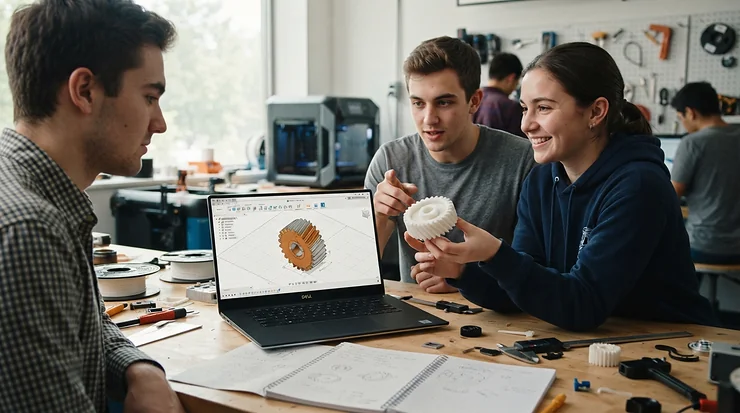
CAD software students use is a category of computer-aided design programs. They let engineering and design students build precise 2D drawings and 3D models, run basic simulations, and produce technical drawings. They usually come under free or discounted education licences that limit use to coursework and non-commercial projects.
That definition sounds tidy. The real shopping experience is not. Walk into any first-year engineering lab in Canada and you’ll hear the same panicked questions. Which program does my school use? Can I run it on my laptop? Will I be locked out in eight months? Pick badly and you lose a weekend to an install that won’t launch. Pick well and a bracket, a bridge truss or a rocket fin goes from napkin sketch to screen in an afternoon.
Here’s the good news. The best CAD software students can get in 2026 is often free, because publishers know that today’s first-year learner is tomorrow’s purchasing manager. The catch is that “free” arrives with fine print: renewal cycles, non-commercial clauses, platform limits and school-specific access codes.
This guide compares seven real tools. Six are software and one is a hardware add-on that changes how you move around a model. Along the way you’ll get an honest read on each pick, plus practical help with engineering design software choices, technical drafting habits, engineering visualization, and even aerospace engineering toys and civil engineering projects that make practice fun. Prices below are ranges in Canadian dollars, so check current pricing before you commit.
Quick Comparison: 7 Picks for CAD Software Students at a Glance
| Product | Type | Typical Student Cost (CAD) | Best For |
|---|---|---|---|
| Autodesk Fusion | Cloud-connected 3D CAD/CAM | Free while eligible | All-round projects |
| SOLIDWORKS | Windows desktop 3D CAD | Free to ~C$80–C$190 per term, depending on route | Mechanical coursework |
| Onshape | Browser-based 3D CAD | Free for current students | Chromebooks, teamwork |
| AutoCAD | 2D/3D drafting | Free via education access (verify eligibility) | Drafting, civil, architecture |
| FreeCAD | Open-source parametric CAD | Free | Tinkerers, no-strings licensing |
| Tinkercad | Browser-based beginner 3D | Free | Beginners, 3D printing |
| 3Dconnexion SpaceMouse Compact | 3D navigation hardware | Roughly C$180–C$280 | Heavy 3D modelling |
The pattern is clear. Cost is the least interesting variable here, because five of the six software options can be had for free. What separates them is platform (Windows-only versus browser), what your school teaches, and how much licence fine print you can live with. If you’re a Windows-based mechanical student, SOLIDWORKS and Autodesk Fusion lead. If your laptop is modest, Onshape and Tinkercad win on portability.
💬 Just one click — help others make better buying decisions too!😊
Top 7 CAD Software Students Should Compare: Expert Analysis
Each pick below combines real specifications with what publishers, universities and aggregated reviews report. Software rarely gets retail-style star ratings, so where verified review data is thin I say so rather than invent anything.
1. Autodesk Fusion — best all-rounder with free education access
Autodesk Fusion bundles modelling, simulation and CAM toolpaths in one program, so a single file can go from sketch to machine-ready.
The publisher states that qualifying students and educators get free access to full features. The Education plan runs one year and is renewable annually while you stay eligible. If you stop qualifying, a 30-day trial is the fallback. Cloud sharing is the underrated perk. Students can send a link so an instructor can view, mark up and comment in a browser, which beats emailing 300 MB files at midnight.
On the spec sheet, the integrated CAM matters most if your school has a CNC mill or 3D printer. University machine-shop pages in Canada already list Fusion’s toolpath capabilities, so your future lab likely supports it. Based on the feature set, it’s best for design-build teams, capstone projects and anyone who wants a design-to-fabrication workflow.
Retail-style reviews for software are scarce, so I won’t pretend otherwise. What’s verifiable is the education terms. Remember that education licences are intended for learning, not paid client work.
Pros:
- ✅ Free full-featured access for eligible students
- ✅ Design, simulation and CAM in one program
- ✅ Browser sharing makes instructor feedback easy
Cons:
- ❌ Education licence bars commercial or paid work
- ❌ Yearly re-verification is easy to forget
Price: free while eligible; paid plans afterward vary, so check current price. Verdict: the strongest value among all the CAD software students can get without paying.

2. SOLIDWORKS — industry-standard for mechanical coursework
SOLIDWORKS is the workhorse behind countless mechanical design courses. The University of Alberta, for example, has described teaching drafting and design around solid modelling with it, including preparation for the Certified SOLIDWORKS Associate exam.
It’s a full Windows desktop application, so you’ll want a reasonably capable machine. Access comes mainly through school licensing. McGill’s Student Engineering Kit, for instance, issues a 365-day, educational-use-only licence on personal computers, verified through the school.
Here’s what the spec sheet won’t tell you: pricing and eligibility have shifted over the years. Older sources cite student licences in the US$86–US$139 per-year range through resellers. A cloud-based student option has been reported near US$60 per year. More recent coverage describes the desktop Student Edition as free for eligible students. Those sources disagree, so confirm with your institution before paying anything.
Analytically, the payoff is résumé relevance. If your target co-op employers use it, learning it early is a strong move.
Pros:
- ✅ Widely taught in Canadian engineering programs
- ✅ Full desktop power for assemblies and drawings
- ✅ Certification pathway adds résumé value
Cons:
- ❌ Windows-only, so Mac users need workarounds
- ❌ Licence terms and pricing vary by school
Price: free to roughly C$80–C$190 per term depending on route. Verdict: best when your program already standardises on it.
3. Onshape — best browser-based pick for teams and modest laptops
Onshape runs entirely in a browser, which means a Chromebook, an old laptop or a lab PC all behave the same.
The publisher lists a free Student plan for current students and a free Educator plan. Coverage of the platform highlights simultaneous editing by group members and a full change history, so nobody accidentally overwrites a teammate’s work. One independent write-up notes that documents carry a small EDU marker and can’t be used commercially, and that students re-enrol annually.
In practice, version history is the sleeper feature. Group projects are where student CAD usually goes wrong, with files named “final_v3_REAL_final”. Onshape removes that mess. Educators in the coverage also note students are productive within minutes because nothing needs installing.
The tradeoff is dependence on an internet connection. Expect lag on weak Wi-Fi.
Pros:
- ✅ Zero install, works on nearly any device
- ✅ Real-time collaboration with automatic version history
- ✅ Free for current students
Cons:
- ❌ Needs a steady internet connection
- ❌ EDU documents can’t be used commercially
Price: free for current students. Verdict: the smartest low-spec laptop answer.
4. AutoCAD — the 2D drafting standard for civil and architecture
AutoCAD is the program most people picture when they hear technical drafting. It produces precise 2D and 3D drawings and is widely used by architects, engineers and construction professionals. Canadian university machine-shop pages describe it exactly that way.
Autodesk’s education programme extends free one-year, renewable access to qualifying students across its software, so eligible students should check whether AutoCAD is included for their institution.
The real-world meaning: if you’re headed toward civil engineering projects such as site plans, road layouts or utility drawings, you’ll meet AutoCAD drawings constantly, even if your design work happens elsewhere. It’s less about sculpting parts and more about drawing conventions, layers and plotting. Reading and producing clean drawings is a skill employers notice.
Aggregated impressions point to a steep command-line-flavoured learning curve for newcomers, which fades once keyboard shortcuts become muscle memory.
Pros:
- ✅ Dominant in drafting, civil and architectural workflows
- ✅ Precise 2D control for dimensioned drawings
- ✅ Strong transferable skill for co-op placements
Cons:
- ❌ Dated-feeling interface for 3D modelling
- ❌ Education licence excludes commercial work
Price: free via education access, verify eligibility. Verdict: essential if drafting is your future.
5. FreeCAD — best no-strings open-source option
FreeCAD is open-source parametric CAD, free for everyone, with no student verification, no expiry dates and no commercial-use restrictions. For a student worried about losing access after graduation, that’s a genuine advantage.
It runs on Windows, macOS and Linux, which helps if you’re on a non-Windows machine. Modular workbenches handle part design, sketching and drawings. In practical terms, you can open your files years from now without a licence server.
The honest critique: community feedback commonly describes a rougher interface and a steeper learning curve than commercial peers. Editing early features has historically been able to break later geometry references, a quirk worth saving frequently for. Treat it as a patient learner’s tool.
There’s no retail-style review dataset to cite here, so the analysis rests on how the program is built and widely reported.
Pros:
- ✅ Completely free with no licence restrictions
- ✅ Runs on Windows, macOS and Linux
- ✅ Files stay yours permanently
Cons:
- ❌ Interface feels less polished than commercial options
- ❌ Steeper learning curve for beginners
Price: free. Verdict: ideal if you want a permanent, restriction-free toolkit.
6. Tinkercad — best first step for beginners and 3D printing
Tinkercad is a browser-based modeller built around snapping simple shapes together. It’s the gentlest on-ramp to engineering design software.
It’s free with an account. You assemble primitives, subtract holes, and export for 3D printing. That simplicity is the point. You’ll understand booleans, dimensions and orientation in an hour, concepts that transfer directly into heavier tools.
Where it earns its place for this article is hobby aerospace and mechanical experiments, such as printable rocket fins, glider parts and brackets. Its limits are equally clear: no real parametric history, limited drawing output, and little precision tooling. Think of it as training wheels you outgrow, not a destination.
Because it’s an Autodesk product, graduating to Autodesk Fusion later feels natural.
Pros:
- ✅ Learn the basics within an hour
- ✅ Free and runs in any browser
- ✅ Direct export for 3D printing
Cons:
- ❌ Limited precision and no true parametric design
- ❌ Not suited to formal technical drafting
Price: free. Verdict: perfect for high-schoolers and first-timers.
7. 3Dconnexion SpaceMouse Compact — best hardware upgrade for 3D navigation
3Dconnexion SpaceMouse Compact (model 3DX-700059) isn’t software, but it changes how every CAD program feels. A six-degrees-of-freedom sensor lets you push, pull, twist and tilt the cap to pan, zoom and rotate a model with one hand while the other keeps hold of a regular mouse.
It has two buttons that open radial menus, with up to eight programmable commands through the 3DxWare 10 driver. A brushed-steel base keeps it planted on cramped dorm desks.
Reviewer sentiment is consistently positive on smoother, less disorienting navigation, particularly in Fusion and SolidWorks workflows. A common caution is that it takes time to adjust and that axes sometimes need reversing to feel right. Some reviewers report weak out-of-the-box support in less common programs, so check compatibility first.
On paper, it’s a luxury. If you model for hours each week, it’s a comfort upgrade.
Pros:
- ✅ Smooth one-handed pan, zoom and rotate
- ✅ Compact footprint suits small desks
- ✅ Programmable radial menus speed repetitive commands
Cons:
- ❌ Takes practice to feel natural
- ❌ Compatibility varies outside major CAD packages
Price: roughly C$180–C$280 range; prices may vary by retailer. Verdict: nice to have, not necessary.
How to Choose the Right CAD Software Students Need: 7 Steps
- Check what your school teaches. If instructors grade in SOLIDWORKS files, learn SOLIDWORKS. Alignment beats abstract “best.”
- Confirm your operating system. Windows-only programs are a problem on a Mac. Browser tools such as Onshape sidestep this.
- Read the licence terms. Education access is for learning only. The Student Engineering Kit at McGill is one example of educational-use-only, 365-day terms. Know the renewal date.
- Match the discipline. Mechanical leans toward parametric 3D, civil leans toward drafting.
- Test on your actual laptop. Run a trial model with a few dozen parts before assuming performance.
- Budget for the long term. A free tool that disappears at graduation may cost you retraining. FreeCAD doesn’t.
- Add hardware last. A 3Dconnexion SpaceMouse Compact pays off only after you model regularly.

Your First 30 Days: A Practical Guide for CAD Software Students
Transformation matters more than features, so here’s a first-month plan.
Week 1: Install and verify. Create the education account, confirm eligibility and set a calendar reminder for the renewal date. Install on your actual work laptop, not a borrowed one.
Week 2: Learn sketch discipline. Fully constrain every sketch before extruding. A half-defined sketch is the root of many broken models. Do five simple parts: a bracket, a spacer, a plate with holes, a pulley and a mounting block.
Week 3: Practise assemblies and drawings. Combine parts, apply mates and generate a dimensioned drawing. This is where technical drafting rules matter: consistent units, clear title blocks, readable dimensions.
Week 4: Build something real. Model a desk phone stand or a hinge, then 3D print or machine it.
Common first-month mistakes: skipping file backups, ignoring naming conventions, and modelling in imperial and metric inside the same file. Canadian students should default to millimetres. And save versions often, whether manually or through Onshape‘s automatic history.
Real-World Scenarios: Matching Picks to Student Profiles
Scenario 1: The first-year mechanical engineer. Budget: zero. Environment: Windows laptop with 16 GB RAM, plus campus labs. Frequency: daily during term. Your best fit is SOLIDWORKS if your course uses it, with Autodesk Fusion for side projects.
Scenario 2: The civil engineering student on a Chromebook. Budget: minimal. Environment: shared library computers and a lightweight laptop. Frequency: a few hours weekly. Use Onshape for modelling and book campus lab time for AutoCAD drafting.
Scenario 3: The high-school robotics team member. Budget: tight. Environment: a school computer lab. Frequency: weekly team nights. Start with Tinkercad, then step up to Onshape when parts demand precision.
Scenario 4: The permanent tinkerer. If you want skills and files that outlive any licence, FreeCAD is the insurance policy.
Features That Actually Matter (and Those That Don’t)
Marketing pages love buzzwords. Here’s the filter.
What matters:
- Parametric history. Change a dimension once and the whole model updates. It’s the core skill employers expect.
- Drawing output. Instructors grade drawings, so make sure your tool produces clean, dimensioned sheets.
- File compatibility. STEP files travel between programs, so you can switch tools without remodelling.
- Performance on your hardware. A feature-rich tool that stutters teaches you frustration.
What doesn’t (yet):
- Photorealistic engineering visualization. Attractive, but ignore it until your modelling is solid.
- Advanced simulation suites. Useful in upper years, rarely in first-year design.
- Cloud storage quotas. Rarely a bottleneck for student-sized files.
If your tool does parametric modelling, assemblies and drawings, you already have what 90 per cent of coursework demands.
Common Mistakes When Buying CAD Software Students Think They Need
- Paying for something your school gives away. Check your CAD administrator’s student access code first.
- Ignoring non-commercial clauses. Doing paid freelance work on an education licence breaches its terms. Switch to a proper licence or FreeCAD for that work.
- Choosing by hype. The “best” tool is the one your program uses.
- Skipping platform checks. Windows-only software on a Mac wastes weeks.
- Buying hardware before skills. A 3Dconnexion SpaceMouse Compact won’t fix poor sketch habits.
- Forgetting renewal dates. Annual licences lapse quietly, usually mid-semester.
CAD vs Hand Drafting: What Technical Drafting Looks Like Now
Technical drafting used to mean parallel rules, T-squares and a lot of eraser dust. Today it means digital drawings, but the logic hasn’t changed: communicate geometry unambiguously.
| Task | Hand Drafting | CAD | Best For |
|---|---|---|---|
| Revising a dimension | Redraw by hand | Edit one value | CAD |
| Teaching line weights and projection | Builds intuition | Faster to practise | Hand sketching first |
| Producing manufacturing drawings | Slow, error-prone | Fast, repeatable | AutoCAD or SOLIDWORKS |
| Collaboration | Physical copies | Shared files | Onshape |
Look at the table again and the takeaway is clear: use hand sketching to learn spatial thinking, then switch to CAD for everything you’ll hand in. Revisions are where CAD wins outright, and no one misses redrawing a title block. Many instructors still require a sketch before modelling, and for good reason.

Engineering Design Software and Engineering Visualization by Discipline
Engineering design software isn’t one-size-fits-all.
- Mechanical: SOLIDWORKS or Autodesk Fusion for parts, assemblies and motion studies.
- Civil: AutoCAD for drawings, with Onshape for any parametric components.
- Aerospace: Autodesk Fusion or SOLIDWORKS for airframe parts, with simulation as you advance.
- Product design: Autodesk Fusion for rendering and prototypes.
Engineering visualization deserves a sensible timeline. Early on, shaded views and clean sections are enough. Later, rendered images help capstone presentations and portfolios. Don’t spend a weekend polishing materials on a model whose dimensions are wrong. Visualization should sell good engineering, not hide weak engineering.
Aerospace Engineering Toys That Sharpen Your CAD Skills
Here’s a delightful shortcut: aerospace engineering toys make excellent modelling practice. Model rocket kits (Estes is a well-known maker) and glider kits give you real parts to measure with calipers, redraw in CAD and then improve.
Try this loop:
- Measure a nose cone, fin or wing profile in millimetres.
- Rebuild it in Tinkercad or Autodesk Fusion.
- Redesign the fins, print them and compare flight behaviour.
Large display sets, such as a LEGO Saturn V, aren’t engineering-grade but teach assembly logic and how complex stacks split into stages. The goal isn’t owning toys. It’s reverse-engineering anything you can touch. Availability varies by retailer, so check current listings.
Civil Engineering Projects to Practise Your Drawings
Good civil engineering projects don’t require a construction site. Try these:
- A footbridge truss. Model members and joints, then check how geometry affects load paths.
- A snow-load roof frame. Very Canadian, and an excellent reason to understand loads.
- A site plan. Draw a small lot with setbacks, grading arrows and a driveway in AutoCAD.
- A retaining wall detail. Practise sections, annotations and dimensions.
For these civil engineering projects, aim for drawings someone else could build from. If a classmate can’t interpret your sheet without asking questions, revise it. Drawing clarity is professional literacy.
Long-Term Cost: What CAD Software Students Really Pay Over Four Years
| Product | Typical Cost Pattern (CAD) | Renewal | Best For |
|---|---|---|---|
| Autodesk Fusion | Free while eligible | Annual | Project work |
| SOLIDWORKS | Free to low-C$100s per term | Annual (365 days at McGill) | Mechanical programs |
| Onshape | Free for students | Annual re-enrolment | Group projects |
| FreeCAD | Free forever | None | Long-term access |
| 3Dconnexion SpaceMouse Compact | One-time ~C$180–C$280 | None | Heavy modellers |
The table points to a simple strategy. Spend nothing on software until you’ve confirmed what your school provides, then add hardware only if navigation fatigue sets in. Over four years, free education licences can cover the bulk of your needs. The real total-cost risk is the first year after graduation, when licences end and employer software may differ. That’s why keeping a restriction-free backup such as FreeCAD has genuine ROI.
Licences, Co-ops and Canadian Standards: What Students Should Know
Education licences cover learning, not paid work. That includes certain co-op tasks, so ask your employer which software they expect and whether they provide licences. For career context, Engineers Canada is the national organization of the provincial and territorial regulators, and professional licensure is handled provincially, so check your province’s rules.
On drawing conventions, Canadian practice commonly follows CSA Group and ISO standards, with metric dimensions as the norm. Confirm which standard your course uses. When in doubt, work in millimetres, label units clearly and keep title blocks consistent. Good habits now mean fewer corrections later.

FAQ
❓ Can I use student CAD software for freelance jobs?
❓ Do I need a powerful laptop for CAD software students rely on?
❓ Which computer-aided design program is easiest to learn first?
❓ Is technical drafting still taught if everything is 3D?
❓ Where can I find engineering design software free in Canada?
Conclusion
Choosing among CAD software students can access in 2026 comes down to three questions. What does your program use? What will your laptop run? And how long do you need access? For most people, Autodesk Fusion is the best all-rounder, SOLIDWORKS wins when your department standardises on it, and Onshape fits low-spec machines and group work. AutoCAD matters for drafting and civil work, FreeCAD is the permanent insurance policy, Tinkercad is the friendliest beginning, and a 3Dconnexion SpaceMouse Compact is a comfort upgrade once you model daily.
Pair your software with practice that matters: reverse-engineer aerospace engineering toys, draw real civil engineering projects and treat technical drafting as a skill, not a chore. The tool is only half the equation. Consistent habits do the rest.
✨ Your Move, Future Engineer!
🚀 Pick one program, install it this week and model something you can hold. Click any highlighted product to check current pricing and availability. Your portfolio starts with a single sketch! 💡
Recommended for You
- Mechanical Engineering Kits Teens: 7 Best Picks In Canada (2026)
- Streaming Equipment Teens: 7 Best Smart Picks For 2026
- 7 Best Gaming Keyboard Mechanical Picks For 2026 (Ranked; Worth It)
Disclaimer: This article contains affiliate links. As an Amazon Associate, I earn from qualifying purchases. If you purchase products through these links, we may earn a small commission at no additional cost to you.
✨ Found this helpful? Share it with your friends! 💬
