
In This Article
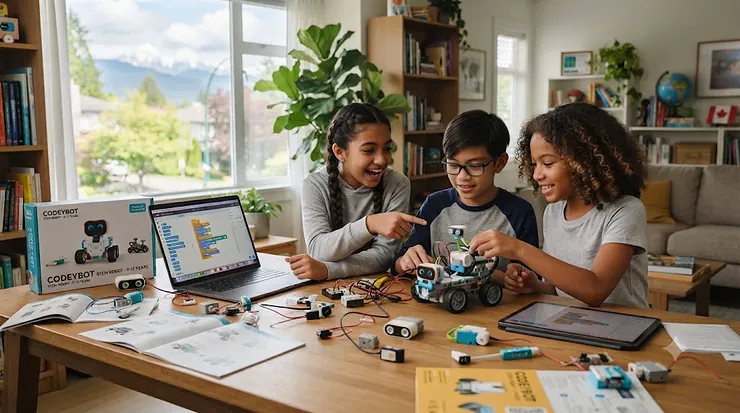
Somewhere in a junk drawer, at this very moment, there is a coding robot that a kid used twice and then abandoned forever. Every parent who has bought a flashy STEM toy off a “top gifts” list knows the feeling — the excitement of unboxing, followed a week later by silence from the corner of the playroom. That’s the real risk with coding toys 9-12: not that they’re bad, but that most buying guides never tell you which ones survive past the honeymoon phase and which ones are destined for the closet.
This guide is different because it’s built around what actually matters for kids aged nine to twelve — the age where “playing” with a robot starts turning into genuine programming literacy, and where a toy that feels too babyish (or too intimidating) gets shelved fast. We looked at real specs, real aggregated review sentiment, and the honest trade-offs between screen-based apps, block coding, and true text-based languages like Python. As coding has increasingly been treated as a necessary 21st-century skill in Canadian classrooms, with some provinces making it a mandatory part of the curriculum, choosing the right entry point at home matters more than ever. Below you’ll find seven real products, honest pros and cons, and a decision framework that goes well beyond “just buy the popular one.”
Quick Comparison Table
If you’re short on time, here’s the condensed version. Prices are approximate ranges in Canadian dollars at the time of research — always check the current price before buying, since Amazon pricing shifts constantly.
| Product | Age Range | Coding Method | Price Range (CAD) | Best For |
|---|---|---|---|---|
| Sphero Bolt | 8+ | Draw, Blocks, JavaScript/Python | around C$90-C$140 | All-round beginner-to-intermediate coder |
| BBC micro:bit + Kitronik Inventor’s Kit | 9+ | MakeCode Blocks, MicroPython | around C$70-C$95 combined | Real hardware and circuits on a budget |
| Ozobot Evo | 8-13 | Colour-code (screen-free) + Blockly app | around C$110-C$150 | Portable, dual-mode learning |
| Makeblock mBot2 | 8-12+ | Scratch, Python, mBlock | around C$130-C$170 | Hands-on robot builders |
| LEGO Education SPIKE Prime | 10-14 | Scratch-based drag-and-drop, Python | around C$450-C$600 | Serious, long-term robotics investment |
| CanaKit Raspberry Pi Starter Kit | 10-14 | Full Python, Scratch, real OS | around C$120-C$160 | Kids ready for a real computer |
| Osmo Coding Starter Kit | 9-10 (younger end) | Tangible blocks + tablet app | around C$70-C$100 | Tactile learners with a spare tablet |
A quick read of this table already tells you something useful: price does not track neatly with educational depth. The Osmo Coding Starter Kit costs less than half of the Makeblock mBot2, yet both teach genuine sequencing and logic — they just do it differently. Meanwhile, the LEGO Education SPIKE Prime sits in a category of its own, priced more like a long-term hobby investment than a birthday gift, which is exactly why it belongs at the end of this list rather than the top. The right pick depends far more on how your child likes to learn than on how much you’re willing to spend.
💬 Just one click — help others make better buying decisions too!😊
Top 7 Coding Toys for Kids 9-12: Expert Analysis
We shortlisted these seven based on real specifications, verified availability, and the kind of aggregated review sentiment you can actually find on product pages — not fabricated “our family tested this for six months” claims. Each one earns its spot for a different reason, so read the “who it’s for” sections closely before you commit.
1. Sphero Bolt — best all-rounder for growing coding skills
The standout here is flexibility: this is a robot kids can outgrow-proof, because it scales from simple drag-and-drop drawing all the way to real JavaScript and Python. The Sphero Bolt is a driveable, programmable robot ball with an 8×8 programmable LED matrix, light and orientation sensors, and inductive (contact-free) charging, all packed into a waterproof shell durable enough to survive a driveway.
What that spec sheet means in practice: the light sensor and compass aren’t just decoration — they let kids write programs that actually react to their environment, like a robot that changes colour when it enters a shadow or navigates by detecting direction. That’s a meaningfully different experience from a robot that just executes a fixed sequence of moves, and it’s why Sphero Bolt holds up as a genuine coding robot rather than a glorified remote-control toy. Reviewers consistently point to the three-tier coding system (Draw, Blocks, Text) as the reason this toy has staying power; a nine-year-old can start by drawing a path on the app screen, then graduate to block-based logic, and eventually write actual JavaScript without buying a new device.
Aggregated customer sentiment across retailers is strongly positive, with the ball’s durability and the “grows with your kid” coding ladder frequently singled out as strengths; a recurring criticism is that the companion app can feel overwhelming to navigate at first without adult guidance.
Pros:
- ✅ Three coding modes scale from beginner to real text-based code
- ✅ Sensors (light, compass, accelerometer) enable genuinely interactive programs
- ✅ Durable, waterproof build holds up to real play
Cons:
- ❌ App has a steep initial learning curve for new users
- ❌ Requires a compatible tablet or smartphone to function
Price sits around C$90-C$140 depending on retailer promotions, and it occasionally dips further during sales events — always check the current price before buying. For the sheer runway of coding modes on offer, the Sphero Bolt represents strong value for a family expecting their child’s interest to deepen over a year or two, rather than fade after the first week.
2. BBC micro:bit V2 with Kitronik Inventor’s Kit — best for real hardware on a budget
The standout feature here is honesty of experience: this is not a toy pretending to be a computer, it’s an actual pocket-sized computer with a 5×5 LED display, built-in accelerometer, compass, Bluetooth, and two programmable buttons, paired with the Kitronik Inventor’s Kit that adds breadboard circuits, an LED, buzzer, and light sensor.
In practical terms, this combination means kids move from clicking blocks together in Microsoft MakeCode to writing actual MicroPython, and from there to wiring up simple circuits that respond to their code — a bridge that most screen-based coding toys never offer. The included quick-start materials and links to online tutorials mean a child can dock the board and get access to guided challenges without needing outside instruction, which matters for parents who don’t code themselves. Reviewers of the Kitronik kit specifically highlight that it’s approachable for a first-timer despite covering genuinely technical ground — one reviewer noted their 12-year-old completed the first experiment in about 10 minutes, and the accompanying book walks through ten experiments of increasing difficulty.
Because the BBC micro:bit is designed for classrooms first and living rooms second, the experience is less “flashy toy” and more “genuine intro to computer science” — which is exactly the point for a tween who’s outgrowing simpler robots and wants to understand what’s actually happening under the hood.
Pros:
- ✅ Bridges block coding to real MicroPython programming
- ✅ Teaches physical circuits, not just on-screen logic
- ✅ Backed by free official curriculum and tutorials
Cons:
- ❌ Requires buying the board and kit separately in most bundles
- ❌ Less “instant fun” than an app-driven robot out of the box
Combined, the board and the inventor’s kit typically land in the C$70-C$95 range, making this one of the most affordable ways to get a kid genuinely coding hardware rather than just tapping icons. For budget-conscious families who want depth over spectacle, it’s tough to beat.
3. Ozobot Evo — best for screen-free and app-based flexibility in one robot
The standout feature is dual-mode learning: kids can program this small robot with coloured markers on paper — no screen required — or switch to the Ozobot Blockly app for structured block coding, all with the same device.
What that means for a nine- to twelve-year-old is real choice in how they learn. The colour-code system uses light sensors on the underside of the robot to read hand-drawn lines and coloured sequences, translating “draw a green-red-green pattern” into an actual command the robot executes — a tactile, screen-free entry point that appeals to kids who find tablets tiring by dinnertime. Then, when they’re ready for more structure, the same physical robot works with Ozobot Blockly’s five skill tiers, which scale from total beginner to genuinely complex logic. The Evo Entry Kit gives access to over 700 free lessons spanning STEAM, computer science, and core subjects, which is an unusually deep well of content for a robot this size.
Aggregated review sentiment praises the portability — Evo is small enough to travel in a backpack — and the fact that the screen-free mode genuinely works as advertised rather than being a gimmick tacked onto an app-first product. A common complaint is that the coloured markers run dry faster than expected and need replacing.
Pros:
- ✅ Works with zero screen time via colour-code markers
- ✅ Scales through five skill tiers inside the companion app
- ✅ Small and genuinely portable for travel or classrooms
Cons:
- ❌ Markers are a recurring, easy-to-forget consumable cost
- ❌ Advanced Blockly features take longer to unlock than some competitors
Expect to pay somewhere in the C$110-C$150 range for the Evo Entry Kit at the time of research, with prices fluctuating around sales periods. For families who want one toy that flexes between “no screens today” and “let’s go deeper,” this is the strongest pick on the list.
4. Makeblock mBot2 — best for kids who want to build, not just code
The standout feature is assembly: this is a robot kids physically construct before they ever write a line of code, which taps into a completely different kind of engagement than an out-of-the-box robot ball.
The mBot2 pairs a buildable chassis with more than ten onboard sensors — including line-following, obstacle avoidance, and colour identification — and it’s expandable with over thirty additional modules through Makeblock’s mBuild platform. Kids progress from Scratch-based block coding to real Python across roughly two dozen guided project cases and courses, which gives this toy a genuinely long runway rather than a handful of demo activities that get stale fast. In practice, that means the same C$150 robot a nine-year-old builds today can still be teaching a twelve-year-old real Python syntax three years later — a meaningfully different value proposition than toys that top out at basic block logic.
Honest analysis: the build step is a double-edged sword. For a tween who loves LEGO-style construction, snapping the mBot2 together is half the appeal. For a kid who just wants to start driving and coding immediately, thirty minutes of assembly before the fun starts can be a genuine barrier — worth knowing before you buy. Reviewers consistently note the build process is well-documented and manageable for this age group, with sensor responsiveness singled out as a strength once assembly is complete.
Pros:
- ✅ Real Scratch-to-Python coding progression built in
- ✅ Ten-plus sensors enable genuinely advanced projects
- ✅ Expandable with add-on modules as skills grow
Cons:
- ❌ Requires roughly 30 minutes of assembly before first use
- ❌ Best features require exploring beyond the basic starter modes
Price generally falls between C$130 and C$170, and Makeblock frequently bundles the mBot2 with add-on packs at a modest premium. For hands-on builders, this is one of the best value-per-hour picks on the list.
5. LEGO Education SPIKE Prime — best premium investment for serious robotics
The standout feature is scope: this is less a single toy and more a full robotics platform, combining LEGO Technic-style building elements with a programmable hub, motors, and sensors that support both drag-and-drop coding and real Python.
The Prime Set includes a rechargeable intelligent hub with a light matrix display, multiple motors, colour and force sensors, and enough building elements to construct dozens of different robot configurations — this isn’t a fixed-shape toy, it’s a construction system. Designed as a practice-oriented STEM learning concept for grades five through eight, SPIKE Prime pairs LEGO bricks and a programmable hub with a child-friendly drag-and-drop language, and students can graduate to competition-level robotics through programs like FIRST LEGO League. On paper, this means a family isn’t just buying a robot — they’re buying years of increasingly complex builds that can carry a kid from age ten through early high school.
Here’s what most buyers overlook: this set is priced closer to a serious hobby than a typical birthday gift, and it’s worth being upfront about that before you get to checkout. It’s genuinely better suited to a family that already knows their child is deeply into robotics — or to a homeschool pod or club splitting the cost — than to a first-time “let’s see if they like coding” purchase. Reviewers consistently describe it as the gold standard for build-your-own robotics at home, while noting the price tag as the single biggest barrier to entry.
Pros:
- ✅ Full LEGO-based robotics platform, not a single fixed robot
- ✅ Scales from drag-and-drop coding to real Python
- ✅ Long-term investment that grows with advancing skill
Cons:
- ❌ Premium pricing puts it out of reach as a casual gift
- ❌ Steeper learning curve than app-first coding robots
Pricing for the full Prime Set typically lands in the C$450-C$600 range depending on retailer and bundle, though smaller SPIKE Essential sets start much lower, around C$40-C$70, for families wanting to test the waters first. This is the toy to buy once you already know coding has stuck.

6. CanaKit Raspberry Pi Starter Kit — best for kids ready to code on a real computer
The standout feature is authenticity: this isn’t a coding toy shaped like a computer, it’s an actual functioning computer, and CanaKit — a Canadian company — bundles the Raspberry Pi board with the power supply, case, heat sinks, and cabling a beginner needs to get it running.
A typical starter kit bundles the board itself with a USB-C power supply, heat sinks, and a micro-HDMI to HDMI cable capable of supporting up to 4K video, meaning a family can go from opening the box to a working desktop computer running a full operating system in under an hour. What that means in practice: kids aren’t limited to a walled-garden coding app — they’re writing real Python inside an actual development environment, on hardware they could eventually use for anything from a media server to a retro game emulator. That range of use cases is precisely what keeps a Raspberry Pi relevant well past the “played with it once” stage that sinks so many coding toys.
Based on the spec comparison with app-based robots, the trade-off is clear: there’s no polished, gamified onboarding here. A Raspberry Pi rewards patience and a parent willing to sit through the first setup together, but it pays that patience back with genuinely transferable computing skills — file systems, command lines, real Python syntax — rather than a simplified, toy-scale version of programming.
Pros:
- ✅ Runs a real operating system and genuine Python, not a simplified app
- ✅ Canadian company (CanaKit) with region-appropriate power adapters
- ✅ Expandable into countless projects well beyond childhood
Cons:
- ❌ Steeper setup curve than any plug-and-play robot on this list
- ❌ Needs a separate monitor, keyboard, and mouse in most bundles
Expect to pay in the C$120-C$160 range for a complete starter kit at the time of research, with prices shifting based on which Raspberry Pi model is bundled. For a tween who has outgrown gamified coding apps and wants the real thing, this is the most future-proof pick on the list.
7. Osmo Coding Starter Kit — best tactile entry point using a tablet you already own
The standout feature is physicality: instead of tapping a screen, kids arrange chunky, magnetic-edged coding blocks on a table in front of an iPad or Fire Tablet, and the Osmo base’s camera reads the arrangement in real time.
The kit ships with the Osmo base and reflector, 31 tangible coding blocks covering commands like Walk, Jump, Repeat, and Subroutines, plus three game apps, which together teach sequencing, loops, and conditional logic through genuinely hands-on manipulation rather than drag-and-drop taps. In practice, this tactile layer changes how kids process the underlying logic: physically snapping a “Repeat” block around a sequence of “Jump” blocks makes the abstract concept of a loop concrete in a way that clicking an on-screen icon often doesn’t, especially for kids who learn best by touching things.
Here’s what the spec sheet won’t tell you: this kit is pitched at ages five and up, which means it skews toward the younger end of the nine-to-twelve bracket and can feel a little simple for an experienced twelve-year-old within a few weeks. It earns its spot on this list specifically as a low-cost, low-friction entry point for reluctant or younger tweens rather than as a long-term primary coding tool. Reviewers consistently praise the tactile design for younger or hesitant coders, while noting more advanced kids move through the content quickly and may need a follow-up toy.
Pros:
- ✅ Genuinely tactile, screen-adjacent (not screen-only) learning
- ✅ No new tablet purchase needed if you already own a compatible iPad
- ✅ Gentle, confidence-building entry point for reluctant coders
Cons:
- ❌ Skews toward the younger end of the 9-12 range
- ❌ Advanced coders may outgrow it within a few months
This kit typically runs around C$70-C$100 depending on whether you buy the iPad or Fire Tablet version, and it requires a compatible tablet the family already owns. As a starter before something more advanced, it’s a smart, low-risk pick.
What Is Computational Thinking?
Computational thinking is the set of problem-solving skills coding toys are actually trying to build — breaking a big problem into smaller steps, spotting patterns, ignoring irrelevant details, and designing a clear sequence of instructions to reach a solution. It’s the reasoning underneath the code, not the code itself, which is why it transfers to subjects well beyond a screen.
That distinction matters when you’re choosing between products on this list. A toy that only teaches kids to memorize which button does what isn’t building computational thinking — it’s building muscle memory. The strongest picks here, like the Sphero Bolt and Makeblock mBot2, force kids to actually plan a sequence of steps and debug it when the robot doesn’t behave as expected, which is where the real cognitive lifting happens.
How to Choose Coding Toys for Kids 9-12
Picking well means matching the toy to the kid, not the other way around. Here’s the reasoning we’d walk a friend through before they hit “buy.”
- Start with learning style, not price. A tactile builder will get more out of the Makeblock mBot2 or LEGO Education SPIKE Prime than an app-based robot, regardless of budget.
- Check the coding ladder, not just the entry point. Look for toys that scale from blocks to real text-based code, like Sphero Bolt or the BBC micro:bit, so the toy doesn’t get outgrown in a month.
- Confirm device compatibility before buying. Anything requiring a tablet or smartphone — including the Osmo Coding Starter Kit and Ozobot Evo — needs a compatible device already in the house.
- Weigh screen-free options for balance. If daily screen time is already a concern, the Ozobot Evo‘s marker-based mode or the BBC micro:bit‘s physical circuits offer genuine screen-free learning.
- Factor in setup effort honestly. The CanaKit Raspberry Pi Starter Kit rewards patience but isn’t a same-day plug-and-play experience the way a robot ball is.
- Budget for the whole ecosystem, not just the box price. Markers, add-on modules, and replacement batteries add real cost over a year of use.
- Read aggregated reviews for durability, not just enthusiasm. A toy with glowing first-impression reviews but frequent durability complaints six months later is a red flag worth digging for.
Real Kids, Real Fits: Three Family Scenarios
Abstract advice only goes so far, so here’s how these picks map onto real situations parents describe.
The reluctant reader who loves building things. If your ten-year-old would rather build a fort than read instructions, skip anything screen-first. The Makeblock mBot2‘s hands-on assembly and the LEGO Education SPIKE Prime‘s open-ended construction give them something to do with their hands before any code enters the picture — the coding becomes the reward for finishing the build, not a barrier to it.
The kid capped on screen time. For a family managing daily screen limits, the BBC micro:bit paired with the Kitronik Inventor’s Kit and the Ozobot Evo‘s colour-code mode both deliver genuine coding practice with minimal or zero screen exposure — worth knowing given that Statistics Canada research tracking the same children over time found only 44 percent consistently met national screen-time guidelines across two survey years.
The twelve-year-old who’s already “done” with toys. An older tween who feels coding apps are babyish is often ready for the jump to something real. The CanaKit Raspberry Pi Starter Kit or the text-based coding tier on Sphero Bolt treats them like a genuine programmer rather than a kid playing a game, which can reignite interest that a simpler toy has already burned through.
Common Problems (And How These Toys Actually Solve Them)
Problem: the toy gets used twice, then forgotten. This usually happens when a toy has one mode and one novelty. Solution: prioritize picks with a coding ladder, like Sphero Bolt or Makeblock mBot2, where there’s always a next level to unlock instead of a hard ceiling.
Problem: parents can’t help because they don’t code either. Solution: lean on toys with strong official curricula, like the BBC micro:bit‘s guided tutorials or Ozobot Evo‘s 700-plus free lessons, so the toy — not the parent — carries the teaching load.
Problem: sibling squabbles over a single device. Solution: screen-free options like Ozobot Evo‘s marker mode or the micro:bit‘s standalone circuits let one child code while another uses the shared tablet for something else.
Problem: budget doesn’t stretch to a premium robotics kit. Solution: start with the BBC micro:bit combo or the Osmo Coding Starter Kit, both under C$100, and treat the LEGO Education SPIKE Prime as a future upgrade once interest is proven.
Problem: the toy feels “too easy” within weeks. Solution: this is the single biggest argument for buying based on the coding ladder in step two of the buying framework above, not on flashy unboxing appeal.
Your Quick-Decision Framework
If you want the short version, use this priority checklist:
- If your child learns by building → choose Makeblock mBot2 or LEGO Education SPIKE Prime, because construction comes before code and sustains engagement longer.
- If screen time is tightly managed → choose Ozobot Evo or the BBC micro:bit, because both offer genuine screen-free or minimal-screen coding.
- If budget is the main constraint → choose the BBC micro:bit bundle or Osmo Coding Starter Kit, since both sit under C$100 while still teaching real logic.
- If your child is nearly a teenager and wants to feel like a “real” programmer → choose the CanaKit Raspberry Pi Starter Kit, because it’s an actual computer, not a simplified toy.
- If you’re not sure yet and want maximum flexibility → choose Sphero Bolt, since its three-tier coding system covers the widest range of skill levels in one box.
✨ Ready to pick one? Compare current prices side by side before your cart expires!
Common Mistakes When Buying Coding Toys for Tweens
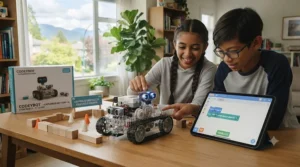
The single biggest mistake is buying based on the box art rather than the coding ladder inside it. A toy that looks impressive in marketing photos but only offers one fixed mode of interaction will get outgrown fast, regardless of how polished the packaging looks.
A close second is ignoring device requirements. Several strong options on this list, including the Ozobot Evo and Osmo Coding Starter Kit, assume access to a specific tablet — buying one of these without checking compatibility first is a common and entirely avoidable disappointment.
The third mistake is treating price as a proxy for educational value. As the comparison table above shows, the C$70-C$95 BBC micro:bit combo teaches genuinely deeper computer science concepts — real MicroPython, real circuits — than some pricier, flashier robots that never move past block-based commands. Reviewers consistently note that the toys with the strongest long-term satisfaction ratings are the ones with a real coding progression, not the ones with the highest price tag.
Coding Toys vs Coding Camps and Classes
It’s worth being honest about what a coding toy can and can’t replace. A physical coding toy offers unlimited practice time at home, no scheduling constraints, and a much lower cost than a season of weekly classes — but it lacks the structured curriculum, peer collaboration, and expert troubleshooting a good instructor provides.
| Factor | Coding Toys (this list) | Coding Camps/Classes |
|---|---|---|
| Cost | One-time, C$70-C$600 | Recurring, often C$200-C$500+ per session |
| Flexibility | Available any time, no scheduling | Fixed weekly or seasonal schedule |
| Structure | Varies by product’s built-in curriculum | Structured, instructor-led curriculum |
| Social learning | Limited unless shared with siblings/friends | Built-in peer interaction and teamwork |
| Best For | Independent, self-paced learners | Kids who thrive with structure and group energy |
Reading the table, the honest takeaway is that these two options complement each other rather than compete. A toy like the BBC micro:bit or Makeblock mBot2 gives a kid low-stakes daily practice, while a structured program — including initiatives that teach students to create their own websites, apps, and programs while developing problem-solving skills and computational thinking — provides the accountability and mentorship a toy alone can’t replicate. Many families find the strongest results come from pairing a good toy at home with even a short, occasional class or workshop.
What to Expect: Real-World Performance
Marketing copy tends to gloss over the messy middle of learning to code, so here’s what actually tends to happen in the first month with most of these toys. Week one is usually smooth: unboxing excitement carries kids through the guided tutorials on the Sphero Bolt, Ozobot Evo, or Makeblock mBot2, and most reviewers describe early wins as genuinely motivating.
Weeks two through four are where toys separate into “keepers” and “closet items.” This is when a child moves past the guided onboarding and has to start making their own decisions about what to build or code — and it’s exactly where a strong coding ladder matters most. Toys with only one mode of play tend to plateau here, while the Sphero Bolt‘s jump to Text mode or the BBC micro:bit‘s move into circuits gives motivated kids a genuine next challenge rather than repetition.
By month two or three, expect a natural split in the household: kids who lean toward independent tinkering will gravitate toward the CanaKit Raspberry Pi Starter Kit or advanced Makeblock mBot2 projects, while kids who prefer guided structure will get more mileage from the built-in lesson libraries on Ozobot Evo or LEGO Education SPIKE Prime. Neither path is better — matching the toy to that pattern early saves money and frustration.
Sphero Coding Robots: A Closer Look
Because Sphero coding robots come up constantly in comparison searches, it’s worth addressing the lineup directly. The Sphero Bolt reviewed above is the mid-tier flagship, but Sphero also makes a smaller, cheaper “Mini” version and a premium “BOLT+” upgrade with improved battery life and speed — worth knowing if the standard Bolt doesn’t quite fit your budget or expectations.
What makes any Sphero coding robot distinct from competitors is the Sphero Edu app’s three-tier structure: Draw mode for absolute beginners, Blocks for intermediate logic, and full JavaScript or Python for advanced coders — all usable on the same physical robot. Based on the spec comparison with the Makeblock mBot2, the trade-off is that Sphero robots arrive fully assembled and ready to drive in minutes, while mBot2 demands a build phase first; which is “better” depends entirely on whether your child wants to start coding immediately or wants the satisfaction of building the robot themselves.
For families specifically comparing Sphero coding robot options, the honest advice is this: buy the standard Sphero Bolt unless your child has already demonstrated sustained interest in coding for six months or more, in which case the BOLT+’s extra battery life and speed may justify the upgrade cost.
micro:bit Starter Kits in Canada: Getting Started
Because parents searching for a microbit starter kit in Canada often land on confusing bundles, here’s a clear breakdown. The board itself — the BBC micro:bit — usually needs to be purchased separately from an add-on kit like the Kitronik Inventor’s Kit reviewed above, and Canadian retailers stock both the standalone board and various bundled starter packages.
Canadian retailers specializing in this space, including robotics education suppliers, carry the beginner-friendly micro:bit kits alongside more advanced options like the Kitronik LAB:bit for classroom computing, as well as club packs for group settings. For a single child at home, the simplest path is the official micro:bit Go Bundle (board, battery pack, and USB cable) plus the Kitronik Inventor’s Kit for hands-on circuits — the same combination reviewed as our second pick above.
One detail worth flagging for Canadian buyers specifically: because the BBC micro:bit is a UK-designed educational tool, some bundles ship internationally, so checking estimated delivery windows before a birthday deadline is worth the extra minute. The official micro:bit accessories page lists current compatible add-ons if you want to expand beyond the basic inventor’s kit later, from robotics buggies to musical touch-pad accessories.
Raspberry Pi for Kids in Canada: Beyond the Toy Aisle
A Raspberry Pi occupies a different category from every other product on this list, which is exactly why it earns a dedicated section. It isn’t marketed as a kids’ toy at all — it’s a legitimate single-board computer that happens to be an excellent teaching tool once bundled correctly for beginners.
For Canadian families, buying from a Canadian supplier like CanaKit — reviewed as our sixth pick — solves two practical problems at once: region-appropriate power adapters and faster domestic shipping compared with importing bundles from overseas retailers. CanaKit stocks the full current Raspberry Pi lineup, including the latest Raspberry Pi 5, alongside Pi 400 all-in-one keyboard computers and a range of kits and bundles suited to different budgets and skill levels.
Here’s what most first-time buyers overlook: a Raspberry Pi for kids in Canada isn’t really “one product,” it’s a starting board plus a stack of decisions — which model, which case, whether to add a screen. The starter kit approach reviewed above sidesteps most of that decision fatigue by bundling the essentials, which is the right call for a first purchase; more experienced families sometimes prefer building their own custom bundle once they know exactly what their child wants to build next.
Programming Literacy and Computer Science Foundations
Programming literacy for a nine- to twelve-year-old isn’t about memorizing syntax — it’s about becoming comfortable enough with logic, sequencing, and debugging that code stops feeling mysterious. That comfort is the actual goal behind every product on this list, and it’s why the coding ladder matters so much more than any single feature.
Building genuine computer science foundations at this age means exposure to a few core ideas repeatedly, in different forms: sequences (do this, then this), loops (repeat until a condition is met), conditionals (if this happens, do that), and debugging (figuring out why the plan didn’t work and fixing it). A recent academic report tracking the integration of coding and computational thinking across Canadian provinces and territories found meaningful curriculum growth between 2018 and 2024, and organizations like CodeBC’s teacher-facing computational thinking resources show just how mainstream this thinking has become in Canadian classrooms — which means many kids are now getting a first taste of these ideas at school before a coding toy even enters the picture at home, making the toy a reinforcement tool rather than a sole teacher.
The strongest picks for building lasting computer science foundations are the ones that don’t let kids stay in “easy mode” forever. The BBC micro:bit‘s jump into MicroPython, the Sphero Bolt‘s Text tier, and the CanaKit Raspberry Pi Starter Kit‘s full Python environment all force a transition from visual blocks to typed syntax — the single biggest leap in programming literacy a kid this age can make, and one worth prioritizing over flashier but shallower alternatives.
Safety, Screen Time, and Canadian Guidelines
Coding toys sit in an interesting spot on the screen-time conversation: they’re educational, but many still involve a tablet or phone, so it’s worth thinking through deliberately rather than assuming “educational” automatically means “unlimited.”
Canadian public health research has found that recreational screen time exceeding two hours per day is associated with a range of health concerns, and while coding practice arguably falls closer to educational use than pure recreation, it’s reasonable for families to track it within the same daily budget rather than treating it as exempt by default. This is one more argument in favour of the screen-free or minimal-screen options on this list — the Ozobot Evo‘s marker mode and the BBC micro:bit‘s physical circuits let kids build real skills without adding to tablet time at all.
On the hardware side, look for products carrying recognized safety certifications and age-appropriate battery designs; every product reviewed above ships with rechargeable, sealed battery systems rather than loose button batteries, which matters for households with younger siblings around. As with any electronics purchase for kids, checking for small, detachable parts before handing a toy to a child under the printed minimum age is basic good practice, regardless of how educational the packaging claims the toy to be.
Frequently Asked Questions
❓ What age should a kid start using coding toys?
❓ Do coding toys actually teach real programming skills?
❓ Is a coding robot or a Raspberry Pi better for a 12-year-old?
❓ How much should I expect to spend on a good coding toy?
❓ Can coding toys work without Wi-Fi or a tablet?
Conclusion
There isn’t a single “best” coding toy for every kid between nine and twelve — there’s a best fit for your particular kid’s learning style, your household’s screen-time comfort zone, and your budget. What matters most, based on everything in the comparison above, is choosing a toy with room to grow: one that doesn’t max out its own teaching potential within the first few weeks.
If you want the shortest possible summary: the Sphero Bolt offers the widest coding range for the money, the BBC micro:bit combo delivers the most genuine computer science depth per dollar, and the LEGO Education SPIKE Prime is worth the premium only once you already know coding has stuck. Whichever you choose from this list, the honest goal isn’t picking the toy with the flashiest unboxing video — it’s picking the one still getting used in month three.
Recommended for You
- Electric Scooter Kids: 7 Top Picks Parents Trust in 2026
- Arduino Starter Kit Kids: 7 Proven Picks for 2026
- 7 Best Robotics Kits for 10 Year Old Kids in 2026
Disclaimer: This article contains affiliate links. As an Amazon Associate, I earn from qualifying purchases. If you purchase products through these links, we may earn a small commission at no additional cost to you.
✨ Found this helpful? Share it with your friends! 💬🤗
