

In This Article
Somewhere between the mouse you’ve outgrown and the sketchbook gathering dust on the shelf sits a decision a lot of Canadian artists put off for way too long: which Wacom tablet Canada shoppers actually recommend, and which one just looks good in a YouTube unboxing. A Wacom tablet is a type of graphics tablet — a pressure-sensitive input device, either a screen-free pad or a full pen display, that translates hand movement into digital linework, standing in for a mouse when you draw, retouch photos, or lay out a design. Wacom has spent almost four decades refining that pen feel, and in 2026 its Canadian lineup runs from a C$70 starter pad to a four-figure OLED screen artists sling into a backpack.

This guide skips the marketing copy. Every product below is real, currently sold, and cross-referenced against genuine spec sheets and aggregated review sentiment rather than invented star ratings. 🎨 Whether you’re a manga artist chasing crisp inking lines, a portrait painter who wants smoother skin-tone blending, a design student assembling an art school starter kit, or a working illustrator upgrading to full digital art professional gear, there’s a tier here built for you. We’ll walk through seven models, four comparison tables, honest pros and cons, and the kind of setup advice Amazon’s product page will never bother giving you.
Quick Comparison Table
| Tablet | Type | Pressure Levels | Best For | Price Range (CAD) |
|---|---|---|---|---|
| Wacom One S | Pen tablet | 2,048 | First-time buyers, tight budgets | C$70–C$90 |
| Wacom Intuos Small | Pen tablet, wireless | 4,096 | Casual sketching, students | C$90–C$130 |
| Wacom Intuos Medium | Pen tablet, wireless | 4,096 | More working space on a budget | C$150–C$190 |
| Wacom Intuos Pro Medium | Pen tablet, wireless | 8,192 | Serious hobbyists, freelancers | C$480–C$560 |
| Wacom One 13 | Pen display | 4,096 | Manga inking, direct-on-screen drawing | C$550–C$650 |
| Wacom Cintiq 16 | Pen display | 8,192 | Portrait and illustration professionals | C$750–C$900 |
| Wacom Movink 13 | OLED pen display | 8,192 | Mobile professionals, studio pros | C$1,300–C$1,500 |
Looking at this table, the split is really about screen versus no screen, and how much pressure resolution your line work actually needs. The Wacom One S and Wacom Intuos family cover anyone who’s fine looking at a separate monitor while their hand moves on a pad below the desk — a real skill, but not for everyone. Meanwhile the Wacom One 13, Wacom Cintiq 16, and Wacom Movink 13 let you draw directly on the image, which shortens the learning curve dramatically for manga and portrait work but costs meaningfully more.
💬 Just one click — help other Canadian artists make a smarter buying decision too! 😊
Top 7 Wacom Tablets: Expert Analysis
1. Wacom One S (CTL-472) — cheapest true Wacom, USB plug-and-play
The Wacom One S is Wacom stripped down to its bones: a 152 x 95 mm active area, a battery-free pen, and nothing else fighting for your attention. It connects over a single USB-C cable, so there’s no Bluetooth pairing dance to fumble through on a Tuesday night when you just want to doodle. With 2,048 pressure levels and 2,540 lpi resolution, the line quality is genuinely good for the price bracket — not pro-grade, but more than enough for cartooning, note-taking, or getting comfortable with pen-on-tablet coordination before spending real money.
Based on the spec comparison against competing budget pads, what stands out is Wacom’s driver ecosystem; the software compatibility with Clip Studio Paint, Photoshop, and Procreate-adjacent Windows apps is more reliable than most sub-C$100 rivals from smaller brands. This is the pick for a nervous first-timer, a parent buying an art school starter kit for a teenager, or an artist who wants a cheap travel backup for their main rig. Reviewers consistently note that the small working area takes a session or two to adjust to, and that the pen’s matte nib wears faster than Wacom’s higher-tier Pro Pen options — a normal trade-off at this price, not a defect.
Pros:
- ✅ Lowest real entry point into genuine Wacom hardware
- ✅ Dead-simple single-cable USB setup, no drivers headache
- ✅ Solid line accuracy for casual sketching and note-taking
Cons:
- ❌ Small active area feels cramped for detailed illustration
- ❌ No wireless option, unlike the Intuos line
At around C$70–C$90 on Amazon.ca, the Wacom One S earns its keep as a low-risk way to find out if digital drawing clicks for you before committing further.

2. Wacom Intuos Small (Bluetooth) — wireless sketching for beginners
Step up to the Wacom Intuos Small, and the headline change is Bluetooth — you can pair it to a laptop across the room and sketch from the couch, which sounds trivial until you’ve actually done it. The 152 x 95 mm surface matches the Wacom One S in size, but the pen jumps to 4,096 pressure levels, and four customizable ExpressKeys sit along the top edge for shortcuts like undo, brush size, or eyedropper.
What most buyers overlook about this model is how much the ExpressKeys change your workflow speed once you actually map them; a decent chunk of drawing efficiency comes from not reaching for the keyboard mid-stroke. Reviewers consistently report that the wireless connection is stable for drawing sessions, though a few mention occasional lag on older Bluetooth 4.0 laptops — worth checking your machine’s Bluetooth version before buying. It’s a natural pick for students commuting between a dorm and a studio space, or anyone who wants their setup untethered from a specific desk.
Pros:
- ✅ True wireless freedom via Bluetooth pairing
- ✅ Four ExpressKeys speed up common editing shortcuts
- ✅ Doubled pressure sensitivity over the entry-level One S
Cons:
- ❌ Same small working surface as the cheaper model
- ❌ Bluetooth battery adds occasional recharging to the routine
Priced roughly in the C$90–C$130 range depending on current promotions, this is the sweet spot for a manga drawing kit built around portability rather than screen size.
3. Wacom Intuos Medium (Bluetooth) — bigger canvas, same starter price tier
The Wacom Intuos Medium is essentially the small model’s older, more spacious sibling — a 216 x 135 mm active area that gives your wrist room to make bigger, more confident gestures instead of cramping into a postage-stamp-sized zone. Same 4,096-level Pro-adjacent pen technology, same four ExpressKeys, same Bluetooth pairing, just more real estate to work with.
Here’s what the spec sheet won’t tell you: for anyone doing full-figure illustration, character sheets, or comic panel layouts, working area matters more than most beginners expect. A cramped tablet forces you to zoom in and out constantly, breaking the flow of a gesture drawing session. On the Wacom Intuos Medium, that friction mostly disappears. Aggregated user feedback frequently cites this size as the “just right” middle ground — big enough to feel natural, small enough to still fit in a backpack sleeve without a fuss.
Pros:
- ✅ Roomier 216 x 135 mm surface for full-figure work
- ✅ Same 4,096-level pressure sensitivity as the Small model
- ✅ Still portable enough for a student’s backpack
Cons:
- ❌ Noticeably pricier than the Small for the same core tech
- ❌ Still requires looking at a separate monitor while drawing
Expect somewhere around C$150–C$190 at the time of research, positioning this as the default recommendation for an illustration technology starter setup that won’t feel outgrown in six months.
4. Wacom Intuos Pro Medium (PTH-660) — pro-grade pressure without a screen
This is where the lineup pivots from hobbyist to genuinely professional. The Wacom Intuos Pro Medium ships with the Pro Pen 2, doubling pressure resolution to 8,192 levels and adding 60 degrees of tilt recognition for natural brush shading — tilt your pen like a real charcoal stick and the line responds accordingly. The 224 x 148 mm active area sits on an anodized-aluminum body with a touch ring and customizable ExpressKeys, and multi-touch gesture support means you can pinch-zoom on the tablet surface itself.
Based on the spec comparison with the standard Intuos tier, the tilt recognition is the genuine game-changer here, not the raw pressure count — most artists can’t perceptually tell 4,096 from 8,192 levels, but tilt shading is immediately visible in inking and painting work. What most buyers overlook is that this model also supports Wacom’s replaceable nib kit, which matters for anyone drawing daily, since nib wear on cheaper pens becomes a real line-quality issue after a few months. Reviewers in professional illustration circles consistently praise the build quality and the touch ring for canvas rotation, while some note the driver software occasionally needs a reinstall after major OS updates — an inconvenience, not a dealbreaker.
Pros:
- ✅ Pro Pen 2 with 8,192 pressure levels and true tilt shading
- ✅ Aluminum build feels durable for daily professional use
- ✅ Touch ring and multi-touch gestures speed up canvas control
Cons:
- ❌ Premium price for a tablet with no built-in screen
- ❌ Driver hiccups reported after some Windows updates
Sitting in the C$480–C$560 range, the Wacom Intuos Pro Medium is the last stop before you’re paying for a screen — and for artists who’ve trained themselves to draw without looking down, it’s genuinely hard to beat as digital art professional gear.
5. Wacom One 13 — budget pen display you draw directly on
The Wacom One 13 is the entry point into pen displays, and for a lot of artists, it’s the model that actually changes how drawing feels. A 13.3-inch Full HD (1,920 x 1,080) touchscreen lets you draw directly on your linework instead of translating hand movement onto a separate monitor — a huge deal for manga inking, where eye-hand coordination on the page is half the craft. It connects over a single USB-C cable to compatible laptops, and also works with select Android devices, which is unusually flexible for this price tier.
What the spec sheet won’t tell you, but reviewers note repeatedly, is how much faster new digital artists ramp up on a screen tablet compared to a screen-free one — the “am I drawing where I think I’m drawing” learning curve mostly evaporates. On paper this means the Wacom One 13 trades some display precision (it isn’t laminated as tightly to the glass as Wacom’s pricier Cintiq line, so there’s a touch more parallax) for a genuinely beginner-friendly experience. It’s an easy recommendation for a portrait drawing set upgrade or anyone building an art school starter kit who’s ready to skip the screen-free learning stage entirely.
Pros:
- ✅ Draw directly on your artwork — dramatically shorter learning curve
- ✅ Full HD touchscreen works with laptops and select Android tablets
- ✅ Single-cable USB-C setup keeps the desk uncluttered
Cons:
- ❌ Noticeable parallax gap compared to Wacom’s higher-tier displays
- ❌ Needs a stand or prop for a comfortable drawing angle
At roughly C$550–C$650, this is the first tablet on our list where you’re genuinely paying for the screen experience — and for a lot of buyers, it’s worth every dollar of the jump.
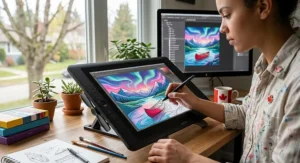
6. Wacom Cintiq 16 — next-gen 2.5K screen for serious illustration
Wacom refreshed the Wacom Cintiq 16 for 2025–2026 with a meaningfully sharper 2,560 x 1,600 IPS panel, up from the previous generation’s Full HD glass, alongside 99% DCI-P3 colour coverage and a fast 12-millisecond response time. It ships with the newer Pro Pen 3, retaining 8,192 pressure levels and battery-free EMR technology, plus three programmable side switches on the pen itself. An anti-glare etched-glass finish cuts reflections without softening line crispness — a small detail that matters enormously during long portrait sessions under studio lighting.
Here’s what most buyers overlook: colour accuracy isn’t just a bragging-rights spec. For portrait and skin-tone work specifically, 99% DCI-P3 coverage means what you paint is far closer to what prints or displays correctly elsewhere, cutting down on the colour-correction guesswork that plagues cheaper panels. Aggregated review sentiment on this generation is notably positive around the screen upgrade, with some users flagging that the display still isn’t fully laminated edge-to-edge like the pricier Cintiq Pro line, so a slight air gap remains between glass and pixels.
Pros:
- ✅ Sharp 2.5K IPS panel with 99% DCI-P3 colour accuracy
- ✅ Pro Pen 3 with 8,192 pressure levels and tilt support
- ✅ Etched anti-glare glass suits long studio sessions
Cons:
- ❌ Meaningful jump in price over screen-free Intuos Pro models
- ❌ Slight parallax remains versus fully laminated premium displays
Expect somewhere in the C$750–C$900 range at the time of research, making this the natural landing spot for digital art professionals who want colour-critical portrait and illustration work handled properly.
7. Wacom Movink 13 — ultralight OLED for artists who travel
At the top of this list sits the Wacom Movink 13, Wacom’s thinnest and lightest pen display to date, built around a 13.3-inch OLED panel instead of the IPS glass used elsewhere in the lineup. OLED brings genuinely deep blacks and vivid contrast that IPS simply can’t match, alongside the same Pro Pen 3 with 8,192 pressure levels. The whole unit is thin enough to slide into a laptop sleeve, targeting illustrators, concept artists, and studio professionals who bounce between a home setup and client meetings or convention floors.
Based on the spec comparison against the stationary Wacom Cintiq 16, the trade Wacom made here is clear: portability and screen quality over raw working size, since the Movink’s footprint stays compact. Reviewers who work professionally on the road consistently cite the weight savings as the deciding factor over a heavier Cintiq Pro, while a smaller number note that OLED panels can, over years of heavy use, be more susceptible to gradual burn-in than IPS — a known characteristic of OLED technology generally, not a defect specific to this unit. For illustration technology at the professional tier, this is about as portable as a full pen display currently gets.
Pros:
- ✅ Vivid OLED contrast in Wacom’s thinnest, lightest display yet
- ✅ Pro Pen 3 delivers full 8,192-level pressure and tilt
- ✅ Genuinely slips into a laptop bag for travelling artists
Cons:
- ❌ Premium price puts it well outside hobbyist budgets
- ❌ OLED carries a long-term burn-in risk with heavy daily use
Priced around C$1,300–C$1,500, the Wacom Movink 13 is a specialist tool — brilliant if your work genuinely travels with you, overkill if it doesn’t.
Top 7 Wacom Tablets: Full Spec Comparison
| Tablet | Active Area | Pressure Levels | Connection | Best For | Price Range (CAD) |
|---|---|---|---|---|---|
| Wacom One S | 152 x 95 mm | 2,048 | USB-C | Absolute beginners | C$70–C$90 |
| Wacom Intuos Small | 152 x 95 mm | 4,096 | USB / Bluetooth | Portable sketching | C$90–C$130 |
| Wacom Intuos Medium | 216 x 135 mm | 4,096 | USB / Bluetooth | Full-figure illustration | C$150–C$190 |
| Wacom Intuos Pro Medium | 224 x 148 mm | 8,192 | USB / Bluetooth | Freelance professionals | C$480–C$560 |
| Wacom One 13 | 13.3″ FHD | 4,096 | USB-C | Manga inking | C$550–C$650 |
| Wacom Cintiq 16 | 15.6″ 2.5K | 8,192 | HDMI/USB | Colour-critical portraits | C$750–C$900 |
| Wacom Movink 13 | 13.3″ OLED | 8,192 | USB-C | Mobile studio pros | C$1,300–C$1,500 |
The jump that actually matters most in this table isn’t the top-line price — it’s the pressure-level column. Going from 2,048 to 4,096 is barely perceptible in daily use, but the leap to 8,192 with tilt support on the Wacom Intuos Pro Medium, Wacom Cintiq 16, and Wacom Movink 13 is where shading and inking genuinely start to feel like a real pen on paper. If your budget realistically stops below C$200, the Wacom Intuos Medium delivers most of the practical experience without the screen premium attached to the top three models.
✨ Don’t miss these Wacom picks — check current pricing before this comparison changes again!
Your First 30 Days: Setting Up and Getting the Most From Your Wacom Tablet
Unboxing a new tablet is the easy part; the first month is where most beginners quietly develop bad habits that slow them down for years. Start by mapping the tablet’s active area to a single monitor rather than your entire multi-screen setup — Wacom’s driver panel lets you restrict tracking to one display, which prevents the disorienting “my hand moved an inch but the cursor jumped across two monitors” problem that trips up nearly every first-timer.
Next, spend ten minutes customizing your ExpressKeys or pen-side buttons before you draw a single line. Map undo, brush size, and eraser toggle to whichever keys sit under your dominant hand’s natural resting position — reaching for a keyboard shortcut mid-stroke breaks concentration far more than people expect. For pen displays like the Wacom One 13 or Wacom Cintiq 16, calibrate the screen alignment in the driver settings immediately; even a couple of millimetres of offset compounds into real frustration during detailed linework.
A common mistake in the first 30 days is gripping the pen too tightly, the same way people white-knuckle a mouse. Wacom’s pens are pressure-sensitive by design, so a lighter grip actually produces better line variation. On maintenance: replace pen nibs roughly every three to six months with regular daily use — Wacom sells nib replacement kits separately, and a worn nib is one of the most common causes of a suddenly “laggy-feeling” tablet that isn’t actually a hardware problem at all. If you’re setting up a longer daily drawing habit, it’s also worth a quick read through the Canadian Centre for Occupational Health and Safety’s ergonomics guidance, since repetitive strain injuries are a real and preventable risk for anyone spending hours a day gripping a stylus.
Real-World Scenarios: Manga Artists, Portrait Painters, and Art School Starters
Scenario one: the manga artist. If you’re inking chapter pages on a weekly deadline and need crisp, confident linework without a learning curve eating into your schedule, the Wacom One 13 is the practical choice. Drawing directly on the page mirrors how most manga artists already think about composition, and the price stays reasonable enough to justify a dedicated manga drawing kit setup at a desk you don’t have to share with other work.
Scenario two: the portrait painter chasing colour accuracy. Skin tones are unforgiving — a slightly warm or cool cast throws off an entire painting. For this reason, the Wacom Cintiq 16‘s 99% DCI-P3 coverage earns its higher price tag as a genuine portrait drawing set upgrade, not just a bigger screen for its own sake. Pair it with a colour-calibrated external monitor if your final output needs to match print or client-approved proofs exactly.
Scenario three: the design student building an art school starter kit. Budget usually rules this decision, and reasonably so. The Wacom Intuos Medium hits a genuine sweet spot: enough working area for full-figure gesture drawing and layout work, wireless enough to move between a dorm desk and a studio classroom, and cheap enough that a mistake doesn’t sting. Programs teaching illustration and graphic design tools rarely require a pen display in year one — screen-free tablets are still the industry-standard training ground for building fundamental hand-eye coordination, a point echoed in this overview of building a graphic design career in Canada.
Scenario four: the working digital art professional. If client work already pays your rent, the calculation shifts toward total efficiency rather than upfront cost. The Wacom Intuos Pro Medium or Wacom Movink 13, depending on whether your studio is fixed or you travel for commissions, both represent illustration technology built to hold up under daily professional use rather than occasional hobby sessions.
Common Tablet Problems and Practical Fixes
Problem: cursor lag or jumpy tracking. This is almost always a driver issue, not a hardware fault. Reinstall the latest Wacom driver directly from Wacom’s support site rather than relying on Windows’ generic driver, and disable Windows Ink compatibility mode if your creative software has its own native tablet support.
Problem: pen feels scratchy or catches on the screen. On pen displays like the Wacom One 13 or Wacom Cintiq 16, this usually points to a worn nib rather than a display defect. Swap in a fresh nib from Wacom’s replacement kit before assuming anything’s actually broken.
Problem: pressure sensitivity suddenly feels flat. Check your creative software’s pressure curve settings first — Photoshop, Clip Studio Paint, and Procreate-adjacent apps all let you adjust how firmly you need to press for full opacity or brush size, and a default curve set for a different tablet model can feel completely wrong on a new one.
Problem: Bluetooth disconnects mid-session on Intuos models. Keep the tablet within about a metre of your Bluetooth receiver, and check for firmware updates through Wacom’s driver utility — connection stability has improved noticeably across recent firmware revisions.
Problem: multi-monitor mapping feels backwards. Revisit the mapping tab in Wacom’s driver settings and manually assign the tablet’s full active area to your primary drawing monitor only, rather than leaving it on the default “map to all displays” setting.
How to Choose a Wacom Tablet in Canada
- Decide screen or no screen first. This single choice eliminates half the lineup instantly and matters more than any spec on the page — a pen display like the Wacom One 13 suits direct-drawing workflows, while a screen-free pad like the Wacom Intuos Medium suits anyone comfortable looking at a separate monitor.
- Match pressure levels to your actual technique. Casual sketchers rarely notice the jump past 4,096 levels; inkers and painters relying on subtle shading genuinely benefit from the 8,192-level Pro Pen 2 or Pro Pen 3 found on higher-tier models.
- Check your software’s tablet compatibility. Most major creative apps support Wacom natively, but always confirm before buying if you’re running a niche or older program.
- Factor in working area realistically. Bigger isn’t automatically better — a large active area on a small desk creates more arm fatigue than benefit for most illustration work.
- Consider portability honestly. If your work genuinely travels, the weight difference between the Wacom Cintiq 16 and the Wacom Movink 13 stops being a minor detail.
- Set a real budget band before browsing, since Wacom’s Canadian lineup spans roughly C$70 to C$1,500, and it’s easy to creep upward without a firm ceiling in mind.
- Read aggregated review sentiment, not just star averages. A 4.5-star rating built on a small review pool means less than a 4.2-star rating built on thousands of consistent reports about the same minor flaw.
Common Mistakes When Buying a Graphics Tablet
The single most common mistake is buying based on active-area size alone, assuming bigger automatically means better. In practice, a working area larger than your natural wrist and forearm range just adds unnecessary reaching. Another frequent misstep is ignoring software compatibility until after the purchase — always confirm your creative suite of choice supports the specific model, particularly with older programs that stopped receiving driver updates years ago.
Buyers also regularly underestimate how much a pen display changes workflow speed compared to a screen-free pad, then feel disappointed when a cheaper Intuos doesn’t “feel” like drawing on paper the way a Wacom One 13 or Wacom Cintiq 16 does. On the flip side, some buyers overspend on a premium pen display when their actual use case — quick photo retouching, occasional design tweaks — never demanded direct-on-screen drawing in the first place. Finally, skipping the nib replacement kit at checkout is a small but common oversight; a worn nib after a few months of daily use is often mistaken for a hardware fault when it’s simply routine wear.
Wacom Pen Tablets vs Pen Displays: Which Should You Buy
| Factor | Pen Tablet (screen-free) | Pen Display |
|---|---|---|
| Learning curve | Steeper — hand and eye disconnect | Gentler — draw directly on the art |
| Price range | C$70–C$560 | C$550–C$1,500 |
| Portability | Very light, minimal desk footprint | Heavier, needs a stand or prop |
| Best For | Budget builds, training fundamentals | Manga, portrait, and colour-critical work |
The written case for a screen-free tablet like the Wacom Intuos Pro Medium is really about discipline and cost: training your hand to draw without looking directly at the pen tip is a genuinely useful skill for traditional animation-adjacent workflows, and the price savings are substantial. The case for a pen display like the Wacom Cintiq 16 is speed of adoption — new digital artists typically hit a comfortable groove in days rather than weeks. Neither approach is objectively superior; it depends entirely on whether you value the lower cost and portability of a pad, or the intuitive feel and faster ramp-up of drawing directly on glass.
What to Expect: Real-World Performance for Illustration and Design Work
Specs on a page rarely translate cleanly into what a drawing session actually feels like, so here’s the honest translation. On a 2,048-level pen like the Wacom One S, expect noticeably steppy shading gradients if you’re doing detailed digital painting — fine for line art and flat colour, less fine for smooth airbrush work. Jump to 4,096 levels on the Intuos family, and gradients smooth out considerably, though still with a faint edge under close inspection at large canvas sizes.
At 8,192 levels with tilt recognition — the Wacom Intuos Pro Medium, Wacom Cintiq 16, and Wacom Movink 13 — the practical difference shows up most in inking and natural-media brush simulation. Tilting the pen to lay down a wider, softer stroke the way you’d angle a real charcoal stick genuinely changes how expressive linework feels, and it’s the single spec upgrade most professional illustrators cite as worth paying for. Colour accuracy differences, meanwhile, mostly matter once you’re exporting finished pieces for print or client approval — casual digital sketchers rarely need to think about DCI-P3 coverage at all.
Long-Term Cost and Maintenance: Nibs, Drivers, and Total Cost of Ownership
| Cost Factor | Screen-Free Tablets | Pen Displays |
|---|---|---|
| Replacement nibs (annual, heavy use) | C$10–C$15 | C$10–C$15 |
| Expected hardware lifespan | 5–8 years | 4–6 years |
| Software/driver updates | Free via Wacom | Free via Wacom |
| Screen protector (optional) | N/A | C$20–C$40 |
Total cost of ownership for the Wacom Intuos Medium stays modest over its lifespan — a nib kit here and there, and otherwise minimal upkeep beyond driver updates that Wacom continues supporting well past the initial purchase. Pen displays like the Wacom Cintiq 16 or Wacom Movink 13 carry a higher upfront cost and a shorter realistic lifespan before screen technology meaningfully advances again, but a matte screen protector — cheap relative to the tablet itself — noticeably extends glass longevity by absorbing daily nib wear. For freelancers thinking in cost-per-billable-hour terms, even the priciest option on this list amortizes to pennies per working day across a few years of steady client work.
Features That Actually Matter (And Those That Don’t)
Tilt recognition matters — genuinely, measurably, in how natural your shading looks. Pressure-level counts beyond 8,192 do not; marketing departments love a bigger number, but human hands can’t perceptually distinguish finer gradations than what Wacom’s Pro Pen line already delivers. Bluetooth wireless matters for anyone who values a clutter-free desk or draws from a couch, but it’s a convenience feature, not a performance one — wired connections are no slower in practice.
ExpressKeys and touch rings matter more than most beginners expect, because workflow speed compounds over thousands of strokes in a working session. Screen size on a pen display matters less than colour accuracy for most professional use cases — a smaller, colour-accurate panel beats a larger, washed-out one for portrait and product illustration work. And multi-touch gesture support, while pleasant, rarely changes actual output quality; it’s a nice-to-have rather than a genuine differentiator between models.
Wacom Tablets for Digital Art Professionals: Illustration Technology and Graphic Design Tools
For anyone earning a living from digital art professional work, a Wacom tablet is really just one piece of a broader illustration technology stack. Pairing hardware like the Wacom Intuos Pro Medium or Wacom Cintiq 16 with software such as Clip Studio Paint, Adobe Photoshop, or Procreate on iPad-adjacent workflows rounds out a genuinely production-ready setup. According to Canada’s federal Job Bank, graphic designers and illustrators fall under NOC 52120, and current employment outlook data for the occupation shows demand varying meaningfully by province and sector — worth a look if you’re weighing hardware investment against a broader career shift into design.
Graphic design tools built around a Wacom tablet extend well beyond raw drawing, too. Precise pen input speeds up masking and selection work in Photoshop, retouching in Lightroom-adjacent apps, and vector path editing in Illustrator-style software — tasks that are genuinely clumsy with a mouse. For professionals working across both illustration and layout design, a mid-tier pen display like the Wacom Cintiq 16 often becomes the single most-used piece of hardware on the desk, outlasting monitor upgrades and even full computer refreshes in some studios.

Frequently Asked Questions
❓ Is a Wacom tablet worth it for beginners in Canada?
❓ Can I use a Wacom tablet without drawing software?
❓ Do Wacom tablets work on Mac and Windows equally well?
❓ How long does a Wacom pen last before needing a new nib?
❓ What's the difference between Wacom One and Wacom Cintiq?
Conclusion
Choosing among these seven models really comes down to one honest question: how much does drawing directly on the screen matter to you, and how much are you willing to pay for that convenience? If the answer is “not much, I just want to learn,” the Wacom Intuos Medium delivers nearly everything a beginner needs without the pen-display premium. If the answer is “everything — I need to see my linework exactly where my hand is,” then the Wacom One 13 or Wacom Cintiq 16 earns its higher price tag fast. And for professionals whose work genuinely travels, the Wacom Movink 13 remains the most specialized, most portable option on this list.
Whichever tier you land on, remember that every price mentioned here is a range, not a guarantee — always check the current listing on Amazon.ca before buying, since availability and promotions shift regularly. A little research now saves a returns headache later, and honestly, that’s true of most gear decisions in this hobby-turned-career.
🔍 Ready to pick your Wacom tablet? Click through to check today’s availability and bring your next illustration technology upgrade home!
Recommended for You
- 7 Best Professional Drawing Set Picks for Canadian Artists (2026)
- Telescope Astronomy Teens: 7 Real Picks to Ignite Stargazing (2026)
- Advanced STEM Kits for Teens: 7 Brilliant Picks for 2026
Disclaimer: This article contains affiliate links. As an Amazon Associate, I earn from qualifying purchases. If you purchase products through these links, we may earn a small commission at no additional cost to you.
✨ Found this helpful? Share it with your friends! 💬🤗
