
In This Article
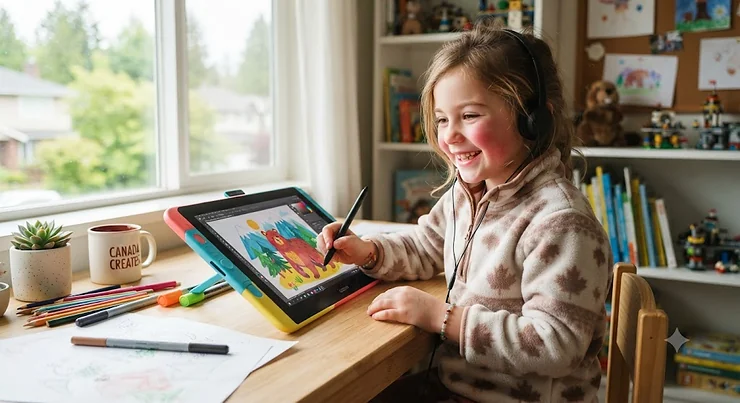
Somewhere in your house right now, there’s probably a wall, a table, or a favourite pair of jeans that’s been “improved” with marker. That’s not a discipline problem — that’s a kid with something to say and nowhere sanctioned to say it. A digital drawing tablet kids can genuinely use, without a manual thicker than their homework, solves that problem in a way paper never quite manages: infinite pages, an undo button that saves everyone’s sanity, and zero mess for you to scrub off the baseboards.

A digital drawing tablet is a device — either a screen-free pad that pairs with a computer or a standalone touchscreen with a pressure-sensitive pen — that lets someone draw digitally instead of on paper, translating hand pressure and movement into lines on a display. For kids specifically, that translates into pinch-proof software brushes, colours that never run out, and art that can be resized, undone, or shared with grandma in Moose Jaw without a single stamp. Canadian screen-time guidance from paediatric experts actually treats creative, hands-on screen activities differently than passive video watching, which matters a lot when you’re deciding whether this purchase fits your family’s rules.
This guide breaks down seven real, currently available options — from a C$35 pen pad to a full iPad setup — with honest pros, honest cons, and zero fabricated five-star gushing. We looked at actual specs, actual aggregated review sentiment, and actual price ranges in Canadian dollars so you’re not left guessing. Whether your artist is five and just wants to scribble rainbows or twelve and asking about Procreate by name, there’s a realistic match below. Let’s get into it.
Quick Comparison Table
| Product | Type | Price Range (CAD) | Best For |
|---|---|---|---|
| XPPen Deco Fun S | Pen tablet (no screen) | Around C$35–C$45 | Cautious first-timers on a tight budget |
| HUION Inspiroy H640P | Pen tablet (no screen) | Around C$30–C$45 | Backpack-friendly portability |
| One by Wacom Small | Pen tablet (no screen) | Around C$40–C$55 | Families wanting a trusted brand name |
| Wacom One Small (Bluetooth) | Pen tablet (no screen) | C$130–C$155 range | Growing artists ready to go wireless |
| Boogie Board Basics 8.5″ | LCD writing pad | Around C$55–C$70 | Toddlers and non-tech-ready hands |
| Amazon Fire HD 10 Kids | Standalone touchscreen tablet | Around C$180–C$230 | An all-purpose tablet that also doodles |
| Apple iPad (11th gen) + Apple Pencil | Standalone touchscreen tablet | C$600–C$750 range | Serious young artists who’ll outgrow toys fast |
Look at that spread for a second, because it tells its own story: this isn’t really a one-size category. A screen-free pen pad like the XPPen Deco Fun S teaches the exact same hand-eye skill as a C$700 setup, just with your existing laptop doing the heavy lifting instead of the tablet itself. The Boogie Board Basics 8.5″ isn’t even trying to be a “real” digital illustration tool — it’s a bridge for hands too small to hold a stylus with intent. Meanwhile the Apple iPad (11th gen) is less a toy and more an investment that keeps paying off well into the teenage years. Picking between them mostly comes down to your kid’s age, your patience for setup, and how much desk real estate you’re willing to surrender.
💬 Just one click — help others make better buying decisions too!😊
Top 7 Digital Drawing Tablet Kids Picks: Expert Analysis
Every product below earned its spot on merit: real specs, real availability, and honest aggregated review sentiment where it exists. None of these entries are paid placements, and none of the “pros” are generic filler — each one ties back to a specific spec or a specific pattern reviewers keep repeating.
1. XPPen Deco Fun S — best sub-C$50 entry point for cautious beginners
The XPPen Deco Fun S is about as low-stakes as digital drawing tablet kids gear gets, and that’s precisely the point. Its 6.3 x 4-inch working surface pairs with your existing Windows, Mac, Chromebook, or Android device over USB, so there’s no new screen for a nine-year-old to crack on day one.
Under the hood, that little pad packs 8,192 levels of pressure sensitivity and a 60-degree tilt function — numbers that, on paper, rival tablets costing three times as much. What that means in practice is a light touch produces a thin, wobbly line and a firm press produces a bold one, the same relationship a pencil has with paper, which is exactly the muscle memory you want a beginner building early.
Based on the spec comparison against similarly priced pads, the Deco Fun S punches well above its price bracket on pressure sensitivity, even if the working area itself is on the small side for a kid used to sprawling across a full sheet of paper. It’s best suited to first-timers aged roughly eight and up who already have steady access to a family computer, rather than toddlers who need something more forgiving.
Reviewers on major retail platforms consistently mention the plug-and-play setup as a standout, with most people up and drawing within minutes and no driver headaches reported for the basic functions. A recurring theme in the feedback is that the bundled software (including a lightweight paint app) is genuinely enough to get started without buying anything extra.
Pros:
- ✅ 8,192 pressure levels rival tablets costing far more
- ✅ True plug-and-play setup with no manual required
- ✅ Compact 260g body slips into any backpack pocket
Cons:
- ❌ No built-in screen, so eyes split between pad and monitor
- ❌ Requires a separate computer to function at all
Expect to pay somewhere around C$35–C$45 at the time of research, prices may vary — for a first drawing tablet that a family can share, that’s a genuinely low-risk way to test the waters before committing to anything pricier.

2. HUION Inspiroy H640P — lightest pick for backpacks and road trips
If the XPPen Deco Fun S is a good starter, the HUION Inspiroy H640P is its slightly more travel-ready cousin. At 277 grams and just 8mm thick, it’s genuinely thinner than most kids’ phone cases, which matters more than it sounds like it should when the tablet’s actual home is the bottom of a school bag three days a week.
Specs-wise, it matches the Deco Fun S almost feature for feature: 8,192 levels of battery-free pen pressure, a 6.3 x 3.9-inch working area, and broad compatibility with Mac, Windows, Linux, and Android via an OTG adapter. The battery-free stylus deserves a specific callout for parents — there’s no tiny AAAA battery to lose or forget to charge, which for households with more than one gadget-owning kid is a genuinely underrated feature.
What most buyers overlook about this model is the six customizable shortcut keys running down the side, which sound like a “pro” feature but function more like training wheels: a kid can map “undo,” “eraser,” and “next colour” to physical buttons, sidestepping fiddly on-screen menus that would otherwise slow a nine-year-old down mid-sketch.
Aggregated feedback across retail listings points to the tablet’s slim design and light weight as the most-praised traits, with several reviewers specifically noting it survives being tossed into a bag without complaint. The most common criticism is that the working area feels tight once a kid outgrows small doodles and starts wanting full-page illustrations.
Pros:
- ✅ Ultra-light 277g body thinner than most phone cases
- ✅ Six customizable hotkeys speed up a young artist’s workflow
- ✅ Battery-free stylus never needs charging or replacing
Cons:
- ❌ Small working area feels cramped for bigger sketches
- ❌ Still requires a host computer to draw on
At around C$30–C$45, in the same general range as the Deco Fun S, the deciding factor between the two really comes down to whether portability (HUION) or slightly gentler tilt sensitivity (XPPen) matters more to your household.
3. One by Wacom Small — most trusted brand at a rookie price
There’s a reason “Wacom” gets dropped into casual conversation the way “Kleenex” gets used for tissues — the company has been building pen tablets for over four decades, and the One by Wacom Small is its answer to “prove it’s worth the name at a beginner price.”
The working surface measures 8.3 x 5.7 inches overall with 2,048 levels of pressure sensitivity — lower on paper than the XPPen and HUION options above, but Wacom’s driver software has a long-standing reputation for translating that pressure data smoothly, without the jittery line-width jumps that cheaper unbranded pads sometimes produce. It also works with Chromebooks without installing a separate driver, a detail that matters enormously for households whose kids do schoolwork on board-issued Chromebooks and would rather not juggle two devices.
Here’s what the spec sheet won’t tell you, but reviewer patterns suggest: brand trust translates into fewer compatibility complaints. Aggregated feedback repeatedly highlights ease of setup and the included software bundle (often featuring a trial of professional-grade painting software) as reasons families feel confident buying it as a genuine “starter kit” rather than a toy that’ll be abandoned in a drawer by spring.
Who should care about this one specifically: parents who’ve been burned before by off-brand electronics that stopped working after a school term, and want the reassurance of a company with real long-term software support behind it.
Pros:
- ✅ Backed by Wacom’s four-decade reputation in pen tablets
- ✅ Works with Chromebooks with zero driver installation
- ✅ Software bundle lets kids start creating the same day
Cons:
- ❌ Lower 2,048 pressure levels than same-priced rivals
- ❌ Pen skips tilt recognition, limiting shading techniques
Priced around C$40–C$55 at the time of research, it sits just above the XPPen and HUION pads — a small premium that mostly buys peace of mind rather than extra hardware.
4. Wacom One Small (Bluetooth) — best wireless step-up for growing skills
Once a kid has proven they’ll actually use a pen tablet regularly rather than letting it gather dust, the Wacom One Small (Bluetooth) is a natural next step. The headline upgrade is right there in the name: Bluetooth 5.1 connectivity means no cable tethering the pad to the computer, which sounds minor until you’ve watched a distracted ten-year-old yank a USB cord out of a laptop for the fifth time in an afternoon.
Its active area measures 6.0 x 3.7 inches, and it ships with the battery-free Wacom One Pen, compatible across Chromebook, Mac, Windows, and Android. On paper, that’s a smaller working surface than some of the budget pads above it — the trade-off here isn’t raw specs, it’s polish and reliability, both areas where Wacom’s driver software and build quality tend to edge out cheaper competitors.
Based on the spec comparison, this model earns its higher price mostly through wireless convenience and Wacom’s ecosystem rather than dramatically better pressure sensitivity. What most buyers overlook is that going wireless also means one less cable a curious younger sibling can chew on or trip over, a small but real safety upside in busy households.
Retail listings show this model holding a genuinely strong review average, with buyers frequently citing smooth day-to-day reliability as the reason for repeat Wacom purchases across a family. The most common complaint centres on the price jump relative to entry-level pads, not the hardware performance itself.
Pros:
- ✅ Bluetooth 5.1 means a genuinely tidier, cord-free desk
- ✅ Battery-free pen never dies mid-drawing session
- ✅ Broad compatibility across Chromebook, Mac, Windows, and Android
Cons:
- ❌ Meaningful price jump over entry-level pen tablets
- ❌ Still screenless, splitting a young artist’s attention
Expect a price in the C$130–C$155 range at the time of research — a fair step-up purchase for a kid who’s already shown real interest, rather than a first-ever gift.
5. Boogie Board Basics 8.5″ LCD Writing Tablet — best screen-free doodler for little hands
Not every kid asking for a “drawing tablet” actually needs digital illustration software — sometimes what they need is something that erases instantly and doesn’t involve markers anywhere near the good couch. The Boogie Board Basics 8.5″ LCD Writing Tablet fills that specific gap, and it deserves an honest mention precisely because it isn’t trying to be more than it is.
This is a pressure-sensitive LCD surface, not a computer peripheral — draw with the included stylus (or a finger, or honestly a fork, kids will find a way), and press the erase button for an instant blank slate. The sealed 3-volt battery is reported to last through roughly 50,000 erase cycles before needing replacement, and at about 1/8-inch thick, it’s genuinely one of the thinnest items on this whole list.
Here’s the honest caveat this list won’t dodge: nothing drawn on a Boogie Board can be saved, exported, or shared. It’s a screen-free comfort object more than a digital illustration tool in the traditional sense, which makes it the right call for toddlers and kindergarten-aged kids who aren’t ready for stylus pressure control on a “real” pad, but the wrong call for an eight-year-old asking to colour digitally like their older sibling.
Aggregated review sentiment across retail sites consistently praises the instant-erase satisfaction factor (there’s something oddly delightful about the little flash animation) and the fact it survives being dropped without shattering. The most repeated criticism is the single-colour grey display, which some parents find less engaging than a full-colour app after the novelty wears off.
Pros:
- ✅ Reportedly lasts around 50,000 erase cycles per battery
- ✅ Ultra-thin at about 1/8 inch, easy to toss anywhere
- ✅ Zero apps, software, or computer setup needed
Cons:
- ❌ Drawings can’t be saved or exported anywhere
- ❌ Single-colour grey display limits real digital illustration practice
At around C$55–C$70, it’s genuinely the least “techy” item here — and for the right age, that’s exactly the appeal.

6. Amazon Fire HD 10 Kids — best all-purpose tablet that also draws
The Amazon Fire HD 10 Kids isn’t marketed primarily as an art tool, and honesty compels us to say that upfront — but it’s genuinely one of the more sensible entry points for families who want one device that streams shows, handles light schoolwork, and lets a kid dabble in drawing apps without a second purchase.
Under its kid-proof case sits a 10.1-inch, 1920 x 1200 display, a 2GHz octa-core processor, and 3GB of RAM, which is plenty for casual drawing and colouring apps even if it can’t touch pressure-sensitive professional software. It comes bundled with a two-year worry-free guarantee and a parent dashboard for setting content filters and screen-time limits, which lines up well with the “manage screen use” guidance Canadian paediatric groups recommend for families setting household media rules.
What the spec sheet won’t tell you, but general-use reviews consistently note, is that touchscreen drawing without a pressure-sensitive stylus produces flat, uniform lines — closer to finger-painting on glass than genuine digital illustration. It’s a fine gateway for kids not yet emotionally invested in “real” art tools, and a poor fit for a kid who’s already asked for line-weight control by name.
Independent reviews highlight the durable build and strong parental controls as the standout strengths, while consistently flagging the limited app ecosystem (Amazon’s own store, not the full Google Play library) and average speaker quality as the recurring weak points.
Pros:
- ✅ Two-year worry-free guarantee plus a durable kid-proof case
- ✅ Parent dashboard controls screen time and content filters
- ✅ Bright, sharp 1920×1200 display with long battery life
Cons:
- ❌ No pressure-sensitive stylus support, so line weight stays flat
- ❌ Limited to Amazon’s app store, missing some drawing apps
Priced around C$180–C$230 at the time of research, it earns its spot as the “does everything reasonably well” option rather than the specialist pick.
7. Apple iPad (11th generation) + Apple Pencil (USB-C) — best long-term investment for serious young artists
If your household has already been through two or three cheaper drawing pads and the kid in question is still asking for more, the Apple iPad (11th generation) paired with the Apple Pencil (USB-C) is the option that stops the upgrade cycle for years, not months.
The 11th-gen iPad runs on Apple’s A16 chip, drives an 11-inch Liquid Retina display, and — critically for digital illustration — supports the full range of professional-grade drawing apps including Procreate, which is arguably the industry-standard illustration app on iPadOS. Unlike every other product on this list, the drawing surface and the display are the same physical screen, so there’s no split attention between a pad and a monitor.
Based on the spec comparison against dedicated kids’ tablets, the gap isn’t subtle: this is genuinely professional-capable hardware in a package a motivated eleven or twelve-year-old can grow into rather than out of. What most buyers overlook is that the resale value on iPads tends to hold up unusually well compared to most consumer electronics, which softens the higher upfront cost if a family upgrades again down the line.
Aggregated sentiment across tech and creative-focused review outlets is consistently strong on build quality, display accuracy, and software compatibility, with the most common criticism being cost — both the tablet itself and the separately sold Pencil add up quickly, and neither ships with a rugged case suited to a distracted kid’s typical handling.
Pros:
- ✅ Full compatibility with professional-grade apps like Procreate
- ✅ Sharp Liquid Retina display shows true, accurate colour
- ✅ Long product lifespan means it grows with the child
Cons:
- ❌ Highest total cost once the Pencil is added in
- ❌ More fragile than purpose-built kids’ tablets without added protection
Combined tablet-and-Pencil pricing lands in the C$600–C$750 range at the time of research, prices may vary — genuinely the priciest pick here, and honestly, the only one on this list that could double as a legitimate creative tool for the parent too.
Top 7 Products: Full Spec Comparison
| Product | Working Area | Pressure Levels | Connection | Best For |
|---|---|---|---|---|
| XPPen Deco Fun S | 6.3 x 4 in | 8,192 | USB, wired | Budget beginners with a computer |
| HUION Inspiroy H640P | 6.3 x 3.9 in | 8,192 | USB, wired | Portability and backpack life |
| One by Wacom Small | 8.3 x 5.7 in | 2,048 | USB, wired | Brand trust and Chromebook use |
| Wacom One Small (BT) | 6.0 x 3.7 in | Battery-free pen | Bluetooth 5.1 / USB | Cord-free, growing artists |
| Boogie Board Basics 8.5″ | 8.5 in LCD | Pressure-sensitive LCD | None (standalone) | Toddlers, non-tech doodling |
| Amazon Fire HD 10 Kids | 10.1 in screen | Touchscreen (no pen pressure) | Standalone Wi-Fi | All-in-one entertainment plus art |
| Apple iPad + Pencil (USB-C) | 11 in Liquid Retina | Full pressure + tilt | Standalone Wi-Fi | Serious, long-term digital illustration |
Reading this table side by side, the split becomes obvious: the top three rows are all “bring your own screen” pen tablets, the middle row is a screen-free comfort tool, and the bottom two are fully standalone touchscreens with wildly different price tags for wildly different ambitions. If you already own a spare laptop or Chromebook nobody’s using, a pen tablet stretches your budget further than a standalone screen ever could, because you’re not paying for a second display at all.
Setting Up Your Child’s First Digital Drawing Tablet: A Practical Guide
Getting a new digital drawing tablet kids will keep using — instead of abandoning after week one — comes down to the first thirty minutes far more than the specs sheet does. Start by installing drivers before the tablet is even in your kid’s hands; a five-minute setup done calmly by an adult beats a frustrated ten-year-old fighting a driver install alone. For screen-free pen pads, orient the working area to match the monitor before letting go — most driver software includes a simple mapping tool, and skipping this step is the single most common reason kids give up early, since the pen and cursor feel disconnected otherwise.
Once it’s running, resist the urge to open a full professional app on day one. Start with a simple, forgiving app with big buttons and undo clearly visible, and let the first session be pure exploration — scribbling, colour testing, pressure experimenting — with zero expectation of a finished piece. A basic maintenance habit worth building early: wipe the drawing surface with a dry microfibre cloth weekly, keep the stylus tip away from direct sunlight and heat (plastic nibs warp), and store any battery-free pen in its holder rather than loose in a pencil case where the tip can crack.
Common first-30-days mistakes worth avoiding: cranking pressure sensitivity to maximum immediately (it makes lines unpredictable for beginners — start at default settings), skipping palm rejection settings on touchscreen models (leading to accidental smudges that frustrate new artists), and assuming a kid should replicate what they draw on paper exactly — digital tools have their own learning curve, and comparing the two too closely early on can be discouraging rather than motivating.
Real Families, Real Choices: Matching the Right Tablet to Your Kid
Picture three different households, because the “right” digital drawing tablet kids need genuinely depends on who’s holding the pen. First: a family with a curious four-year-old who mostly wants to scribble and watch things disappear with a satisfying button press. That household doesn’t need pressure sensitivity or apps — the Boogie Board Basics 8.5″ covers the need completely, costs the least, and survives being dropped on tile.
Second: a nine-year-old who’s shown real, sustained interest in drawing on paper for over a year and has access to a family Chromebook most evenings. This is the classic case for a budget pen tablet like the XPPen Deco Fun S or HUION Inspiroy H640P — low financial risk, real pressure-sensitivity skill-building, and a natural fit with a device the household already owns. If that same kid is on a school-issued Chromebook specifically, the One by Wacom Small‘s no-driver Chromebook compatibility becomes the deciding factor.
Third: a twelve-year-old who’s outgrown a starter pad, talks about specific YouTube illustrators by name, and has asked for Procreate directly. That’s a clear signal for the Apple iPad (11th gen) with Apple Pencil, not because it’s objectively “better” in a vacuum, but because the kid’s ambitions have genuinely outpaced what a budget pen tablet or general-use Fire tablet can support. Matching the tool to the stage of interest — not to what looks most impressive under the tree — is really the whole game here.
How to Choose a Digital Drawing Tablet for Kids
Shopping this category gets a lot less overwhelming once you’ve got a short checklist rather than an endless spec sheet to compare. Here’s the order that actually matters, based on what separates a tablet a kid uses for years from one gathering dust by spring.
- Age and hand development first. Younger kids (roughly 3–6) benefit more from screen-free, instant-erase tools than from pressure-sensitive pens they don’t yet have the fine motor control to use meaningfully.
- Existing hardware in the house. If there’s a spare laptop or Chromebook, a pen tablet stretches your budget dramatically further than a standalone screen tablet would.
- Working area size relative to hand size. A cramped pad frustrates a kid used to drawing big; measure roughly against a sheet of printer paper folded in quarters as a rough guide.
- Pressure sensitivity levels, with realistic expectations. More levels (8,192+) genuinely improve line variation, but only matter once a kid can control pen pressure deliberately — usually age eight or older.
- Software compatibility with apps you’ll actually let them use. Check whether the tablet works with kid-friendly apps you’re comfortable with before buying, not after.
- Durability and warranty terms. Kids drop things; a worry-free guarantee or accessible replacement parts (like nibs) save real money over eighteen months.
- Total cost including accessories. Standalone tablets sometimes sell the pen separately — factor that into the real price before comparing against pen-tablet options.

Common Mistakes When Buying a Digital Drawing Tablet for Kids
The single most common mistake is buying based on pressure-sensitivity numbers alone, treating “8,192 levels” as automatically better than “2,048 levels” without considering that a six-year-old’s fine motor control can’t meaningfully use most of that range anyway. A related misstep is skipping the working-area-to-monitor-size ratio entirely; a tiny pad paired with a huge external display forces exaggerated, awkward arm movements that make drawing feel harder, not easier.
Parents also frequently underestimate setup friction. A CBC report on shifting screen-time guidance notes that Canadian paediatric groups increasingly emphasize the quality and context of screen use over strict time limits — which means a tablet that sits unused in a drawer because setup was too frustrating provides zero of the benefit that guidance is actually pointing families toward. Buying the most expensive standalone option “to be safe” is another common overcorrection; a twelve-year-old who’s never drawn digitally before doesn’t need a C$700 setup to find out if they even enjoy it.
Finally, plenty of buyers forget to check left-handed compatibility and hotkey remapping options before purchase, only to discover mid-use that shortcut buttons sit awkwardly for a left-handed kid’s grip — a small detail that’s genuinely worth thirty seconds of research before checkout, not thirty minutes of frustration after.
Digital Drawing Tablet vs a Sketching Pencils Kit: Which Builds Better Skills?
This is the comparison most gift-buyers skip, and it shouldn’t be skipped, because a sketching pencils kit and a digital drawing tablet aren’t really competing products — they build genuinely different, complementary skills.
| Factor | Digital Drawing Tablet | Sketching Pencils Kit |
|---|---|---|
| Undo/redo capability | Yes, instant | No — mistakes stay visible |
| Cost over time | One upfront cost | Ongoing paper and pencil replacement |
| Line-weight control learning | Software-assisted | Purely physical hand pressure |
| Portability without power | Limited (needs charge or computer) | Works anywhere, no batteries |
| Best For | Digital illustration and colour work | Fundamental shading and observation skills |
A sketching pencils kit forces a kid to commit to a line without a safety net, which — based on how art educators generally frame skill development — actually builds observational accuracy and confidence faster than an undo button ever will. On the flip side, a digital drawing tablet lets a kid experiment fearlessly with colour palettes, layering, and composition changes that would mean starting an entire physical drawing over from scratch. Most working illustrators, professional and hobbyist alike, use both throughout their development, and there’s a strong case that a decent sketching pencils kit sitting in a drawer alongside a pen tablet gives a kid the best of both worlds rather than forcing a choice between them.
Long-Term Cost, Maintenance, and Building the Complete Creative Toolkit
A digital drawing tablet is rarely the only thing a young artist ends up wanting, and pretending otherwise sets families up for a string of “just one more thing” purchases spread out over months instead of planned for upfront.
Total Cost of Ownership
Pen tablets in the C$30–C$55 range have essentially no ongoing costs beyond an occasional replacement nib, typically included in multi-packs for a few dollars. Standalone screen tablets carry a higher upfront cost but similarly low maintenance, aside from eventual battery degradation after a couple of years of daily use. What genuinely adds up over time isn’t hardware — it’s app subscriptions, so checking whether a tablet’s best drawing apps are one-time purchases or recurring subscriptions before buying saves real money down the line.
Art Portfolio Case
Once a kid starts producing work they’re proud of — printed digital pieces, traditional sketches, or a mix of both — an art portfolio case becomes the natural next purchase, and it’s worth budgeting for alongside the tablet itself rather than as an afterthought. A basic zippered art portfolio case in the C$25–C$45 range protects printed illustrations and sketchbook pages from bent corners and coffee-table mishaps, and doubles as a tidy way to bring work to a grandparent’s house or a school show-and-tell without a single crumpled page.
Mixed Media Art Supplies
Don’t assume going digital means abandoning physical materials entirely — most kids who stick with art long-term end up blending mixed media art supplies with their digital work, sketching a rough composition in pencil before finishing it digitally, or scanning a watercolour piece to add digital text and effects on top. A modest starter set of mixed media art supplies (watercolour pencils, a basic ink liner, and blending stumps) runs roughly C$20–C$40 and pairs naturally with any of the tablets above, rather than competing with them for a kid’s attention.
Digital Drawing Tablets for Different Ages and Skill Levels
Age and prior drawing experience matter more than budget when matching a kid to the right device, and treating a six-year-old and a twelve-year-old identically is where a lot of well-intentioned purchases go wrong.
Ages 3–6: Fine motor control is still developing, and pressure-sensitive pens often frustrate rather than delight at this stage. The Boogie Board Basics 8.5″ or general touchscreen doodling on the Amazon Fire HD 10 Kids suit this range far better than a “serious” pen tablet.
Ages 7–10: This is the sweet spot for budget pen tablets like the XPPen Deco Fun S, HUION Inspiroy H640P, or One by Wacom Small — kids at this age can reliably control pressure and follow basic driver setup with light adult help, and the low cost means a low-stakes way to test genuine interest.
Ages 11 and up: Kids who’ve shown sustained interest and want more expressive control are the ideal candidates for the Wacom One Small (Bluetooth) as a mid-tier step-up, or the Apple iPad (11th gen) with Apple Pencil if budget allows and the interest looks likely to stick around for years rather than months.
Safety, Screen Time, and Digital Illustration: A Canadian Parent’s Guide
Because every product recommended here is an electronic device intended for children, Canadian safety standards are worth a genuine mention rather than a throwaway line. Children’s electronics sold in Canada fall under the Canada Consumer Product Safety Act and its associated toy regulations, which address electrical, mechanical, and thermal hazards specifically. Before buying secondhand or from an unfamiliar third-party seller, it’s worth cross-checking Health Canada’s toy safety resources for any active recalls or safety notices tied to a specific model.
On the screen-time side, digital illustration occupies an interesting middle ground in current Canadian paediatric guidance — it’s an active, creative use of a screen rather than passive viewing, which several paediatric health bodies now treat more favourably than scrolling or video-watching when families are setting household limits. That said, “creative” doesn’t mean “unlimited,” and building in natural stopping points (finishing one piece, hitting a timer, switching to a physical sketchbook for a while) keeps digital illustration a genuinely enriching hobby rather than another screen a family is quietly worried about.
It’s also worth flagging that modern art tools in this category increasingly blur the line between “toy” and “creative technology” in ways that older screen-time guidance didn’t fully anticipate — a pressure-sensitive pen tablet paired with a laptop isn’t really comparable to a tablet loaded with games, even though both technically involve a screen. Framing the conversation around what the creative technology is actually being used for, rather than treating all screen time as identical, tends to lead to more sustainable family rules than a blanket time limit ever does.

FAQ
❓ What is the best digital drawing tablet kids can use without much help?
❓ Do kids need a screen tablet or a pen tablet to start digital illustration?
❓ How much should I spend on a first digital drawing tablet for a beginner?
❓ Is a sketching pencils kit still worth buying if my kid has a digital tablet?
❓ What age can kids realistically start using a digital drawing tablet?
Conclusion
There isn’t a single “best” digital drawing tablet kids should get — there’s a best match for the specific kid asking for one, and that match shifts a lot depending on age, patience for setup, and whether there’s already a spare laptop gathering dust somewhere in the house. For most families dipping a toe in for the first time, a budget pen tablet like the XPPen Deco Fun S or HUION Inspiroy H640P offers real pressure-sensitive drawing skill-building at a price low enough that “what if they lose interest” isn’t a devastating outcome.
For younger hands not ready for that level of control, the Boogie Board Basics 8.5″ covers the instant-gratification doodling itch without any setup at all. And for the kid who’s clearly past the “testing the waters” stage — the one who talks about specific apps and specific illustrators — the Apple iPad (11th gen) with Apple Pencil is a purchase that genuinely keeps pace with growing ambition instead of needing replacement in a year.
Whichever direction you land on, remember that the tablet itself is just the entry point. A sketching pencils kit, a proper art portfolio case, and a handful of mixed media art supplies round out a creative setup that grows with a kid far better than any single device could on its own — digital and traditional tools together, not one replacing the other.
✨ Ready to pick the right one for your young artist?
🎨 Check current prices on any of the picks above and see which fits your family’s budget and setup today!
Recommended for You
- Professional Art Set Kids: 7 Top Picks for 2026 (Canada)
- Crystal Growing Set Advanced: 7 Best Picks for 2026
- Best Chemistry Set for a 10 Year Old: 7 Top Picks (2026)
Disclaimer: This article contains affiliate links. As an Amazon Associate, I earn from qualifying purchases. If you purchase products through these links, we may earn a small commission at no additional cost to you.
✨ Found this helpful? Share it with your friends! 💬🤗
